Done with an email? Then finish it. The email disappears from your Inbox, but it is kept. That way your Inbox stays empty and you don’t lose anything.
How to finish an email
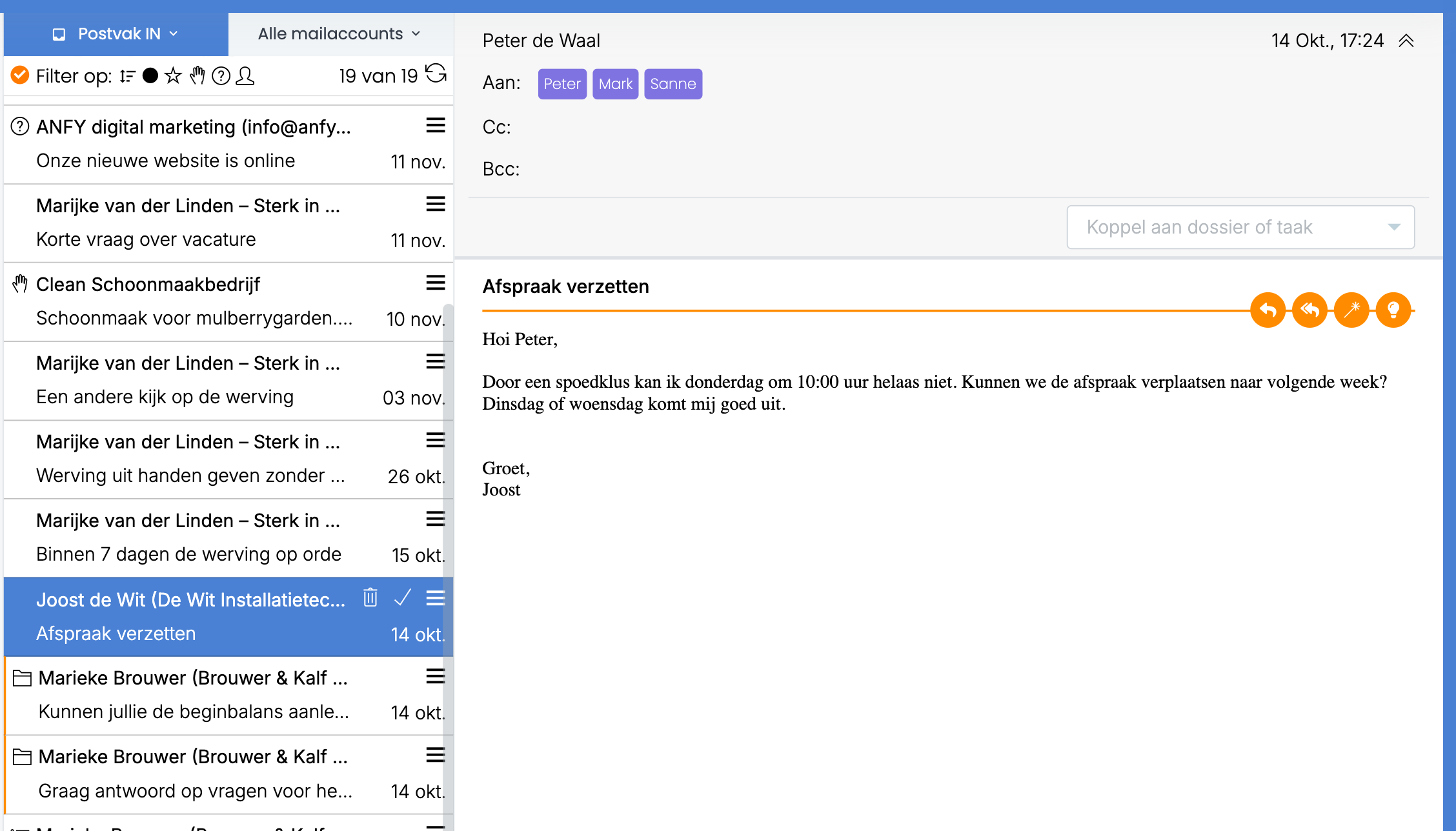
- In the Inbox, click the check mark in the row of the email.
- Or right-click the email and choose Finish.
What happens when you finish an email?
- The email disappears from your Inbox.
- It goes to your Finished folder.
- Is the email linked to a contact? Then it also stays in that contact’s archive, with a green check mark.
An email linked to several colleagues
Is the email also in colleagues’ Inboxes? Then SpinOffice asks whether you want to finish it only for yourself, or for all linked users.
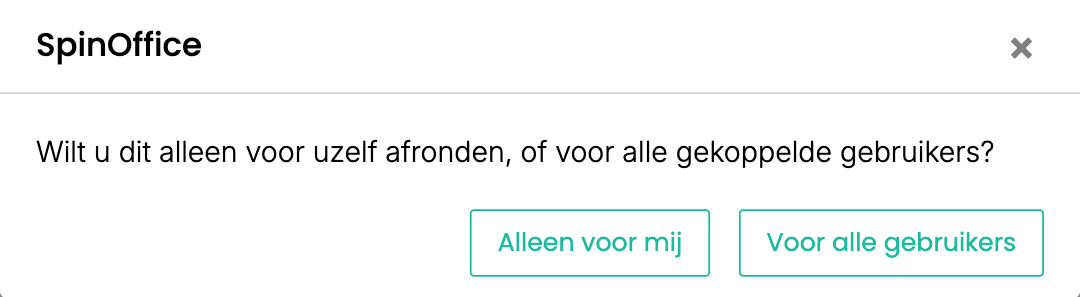
- Only for me: the email disappears from your Inbox. Your colleagues still see it in theirs.
- For all users: the email disappears from the Inbox of everyone it is linked to. Useful if you handled the email on behalf of the team.
Linking later
If you finish an email from someone who isn’t in SpinOffice yet, it also goes to your Finished folder. Decide later to add that sender as a contact after all? Then SpinOffice links all earlier emails from that address to the new contact, including the finished ones. Your entire correspondence is in one place straight away.
Note: finished emails that aren’t linked to a contact or folder are deleted automatically after 90 days by default. Your administrator sets this period under Auto-clean in Company preferences.
Finish or delete?
| Finish | Delete | |
|---|---|---|
| Where does the email go? | To the Finished folder | To the Trash |
| Contact’s archive | Stays there | Disappears from the archive |
| Shared with colleagues | You choose: only for you, or for everyone | Gone for all colleagues |
| Searching | You can find it | You can’t find it |
| How long is it kept? | Linked: stays with the contact. Not linked: 90 days by default. You can change this period in Auto-clean. | The Trash is emptied after 7 days by default |
Only delete what you really don’t need any more, such as spam or advertising.
Read more: Linking emails to contacts
Was this article helpful?
That’s Great!
Thank you for your feedback
Sorry! We couldn't be helpful
Thank you for your feedback
Feedback sent
We appreciate your effort and will try to fix the article