Connect your email account to SpinOffice. Your emails then arrive in your Inbox and are automatically linked to the contact with the same email address. Do you work with several addresses, such as info@ and your own address? Add them all.
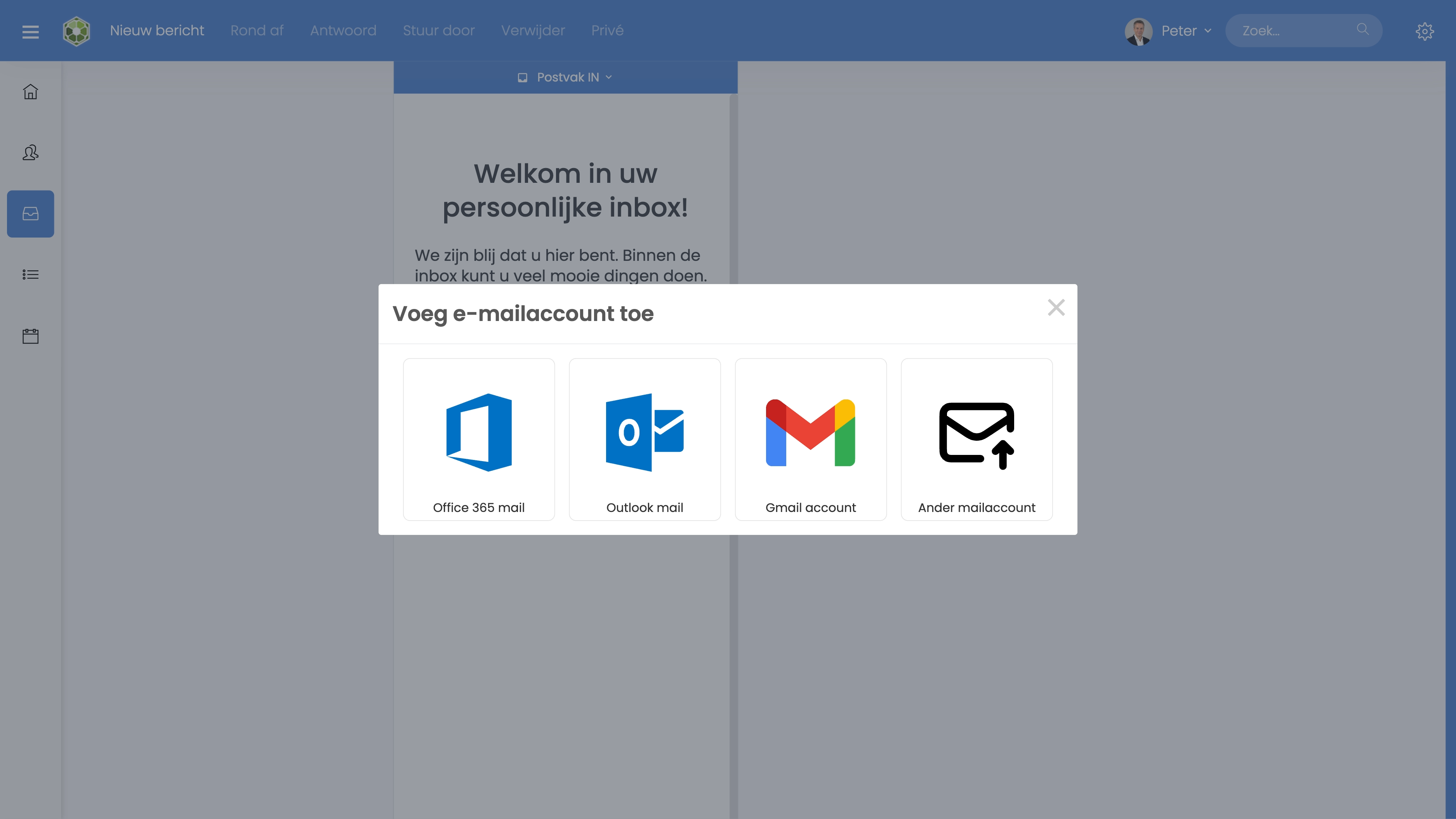
Which account do you have?
The most common accounts have their own step-by-step guide:
- Microsoft 365, Office 365 or Outlook.com: Connecting Microsoft 365 or Outlook
- Gmail or Google Workspace: Connecting Gmail or Google Workspace
- iCloud, me.com or mac.com: Connecting iCloud Mail (iCloud, me.com, mac.com)
- Another account, for example from your hosting company or provider: follow the steps below.
Connecting another account (IMAP)
- Go to your Inbox, click the gear icon at the top right and choose Email accounts. You can also get there via the Home dashboard or via Administration > Email > Email accounts.
- Click + and choose IMAP.
- Enter your email address and click Start.
- SpinOffice looks up the right settings itself. If you see Settings found!, click Connect.
- SpinOffice can't find the settings? Click View server settings and enter your account name, password and incoming mail server. Then click Connect.
Tip: don't know the settings? Check the mail settings on your phone. It uses the same IMAP details.
Did it work?
- Yes: after a few minutes the wizard closes and your emails arrive in your Inbox.
- No: check your account name, password and incoming mail server. Read also: Can't connect your email account
Read also: Which emails does SpinOffice retrieve?
Was this article helpful?
That’s Great!
Thank you for your feedback
Sorry! We couldn't be helpful
Thank you for your feedback
Feedback sent
We appreciate your effort and will try to fix the article