With bulk actions, you edit a whole group of contacts in one go. First you filter the contacts you want to edit, then you choose the action.
- Filter the contacts. Read how: Filtering contacts
- Check the list: the action applies to all contacts you see now.
- Click the bulk action button at the top and choose an action. This button only appears after you've filtered.
The actions
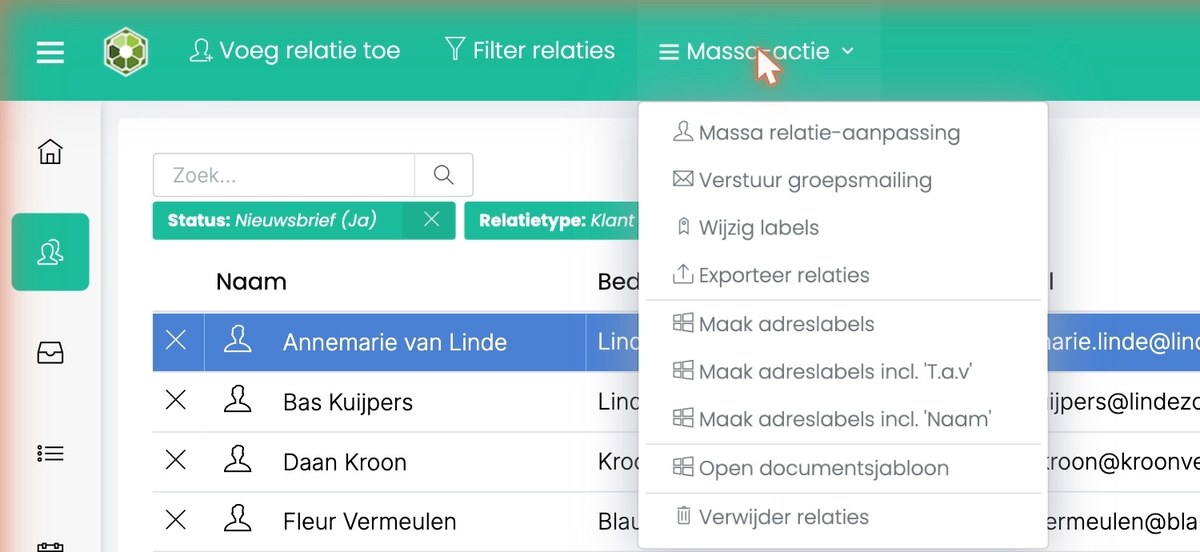
- Bulk contact editing: fill in or change a field for all contacts, for example the contact type or account manager. You can also move the value of one field to another. Choose the field and confirm.
- Send mass mailing: email all contacts. Read how: Sending a mass mailing
- Change tags: give all contacts a tag, with a status if you like, or remove a tag.
- Export contacts: put the contacts in an Excel file. Read more: Exporting contacts
- Create address labels: print address stickers, optionally with 'Attn.' or with the name.
- Open document template: create a document for all contacts based on a template, for example a letter.
- Delete contacts: delete all contacts in the list.
Please note: you can't undo a bulk action yourself. Check your filter carefully before you continue, especially when deleting contacts. Deleted something by mistake? Read Deleting contacts.
Was this article helpful?
That’s Great!
Thank you for your feedback
Sorry! We couldn't be helpful
Thank you for your feedback
Feedback sent
We appreciate your effort and will try to fix the article