With a filter, you show only the contacts you need, for example all your prospects, all customers in Rotterdam or everyone with the tag 'Newsletter'. You can then send that group a mass mailing, export it or edit it in one go.
Filtering with Filter contacts
- In the Contact List, click Filter contacts at the top.
- On the filter tab, choose a field, for example Contact type, Company name, Zip code or an info field.
- Choose an operator, such as is, is not, contains or does not contain, and enter the value, for example Customer.
- Add it as a condition.
- Want another condition? Repeat steps 2 to 4. The conditions tab shows all conditions together.
- Apply the filter.
You now only see the contacts that meet all conditions. The number is shown at the bottom left.
Filtering by tag or status
In Filter contacts, use the tab for filtering by tag:
- Choose the tag, for example Newsletter.
- Does the tag have statuses? Then choose the status field, the operator and the value, for example is and Yes.
- Tick the option to only include tags added by you, if that's what you want.
- Add it as a condition and then filter the contacts.
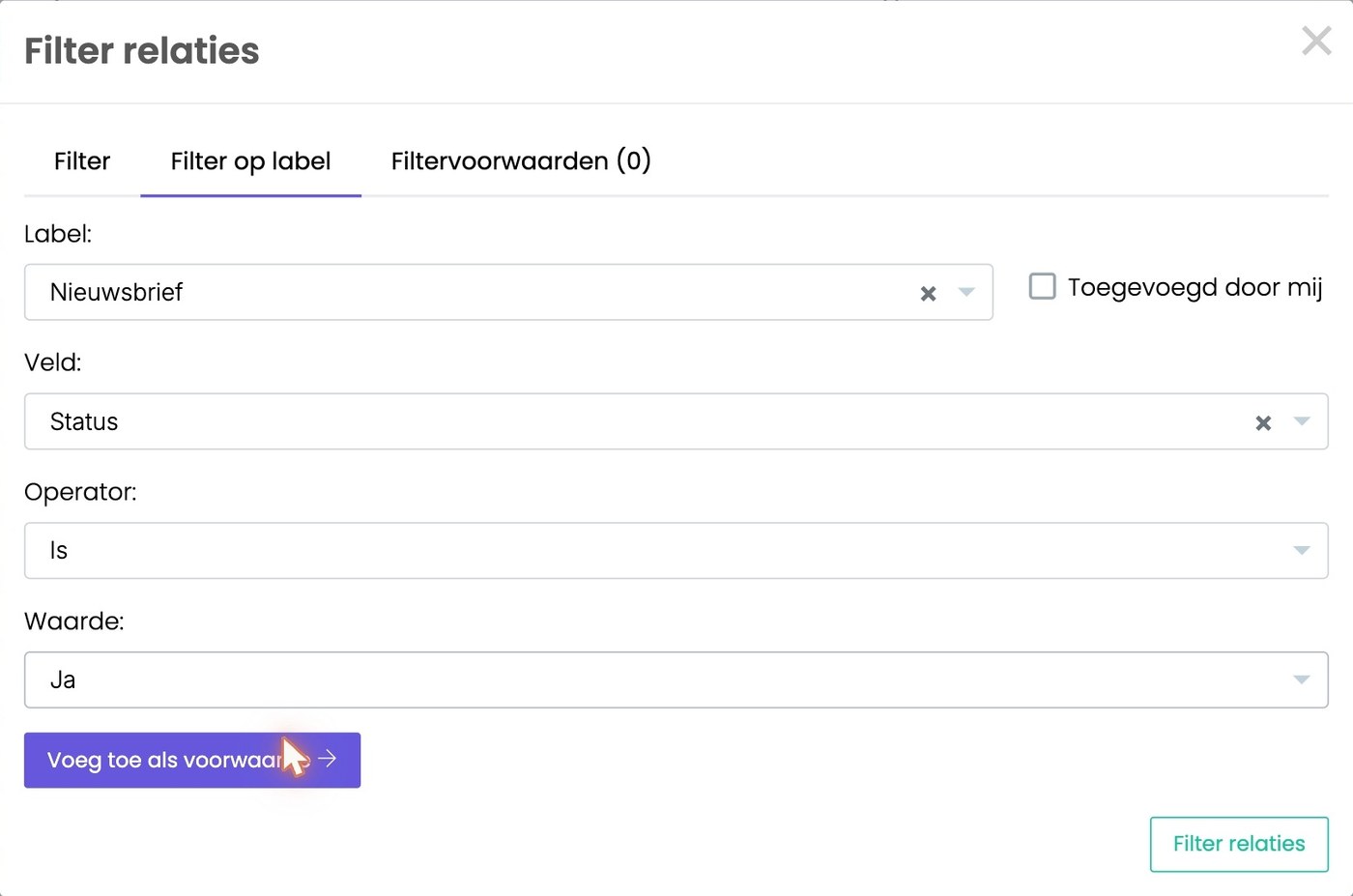
You can combine a tag with other conditions, for example Newsletter (Yes) and contact type Customer.
Removing or saving a filter
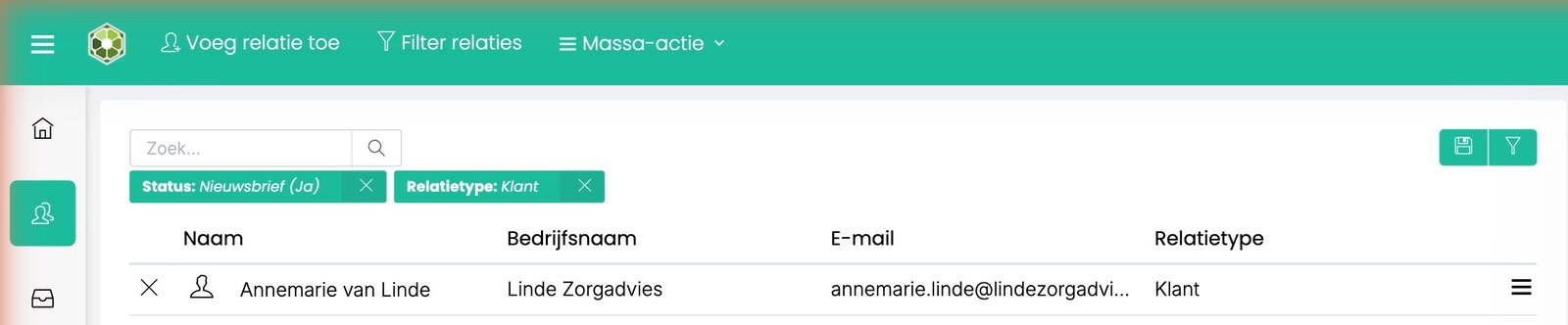
- Your active filters are shown as blocks above the list. Click the × in a block to remove that condition.
- Use the floppy disk icon at the top right of the list to save the filter. Give it a name, for example 'Customers with newsletter'.
- You find your saved filters under the green funnel at the top right of the list. Choose a filter and you immediately see the right contacts, including any new ones added since.
Filtering quickly from a contact
In the contact widget there's a funnel next to the name, the contact type and the info fields. Click it and you see all contacts with the same value. For a tag, click the icon on the right of the tag and choose Filter on selected field or Filter excluding selected. If the tag has statuses, you can also filter on a status. Read more: Using tags
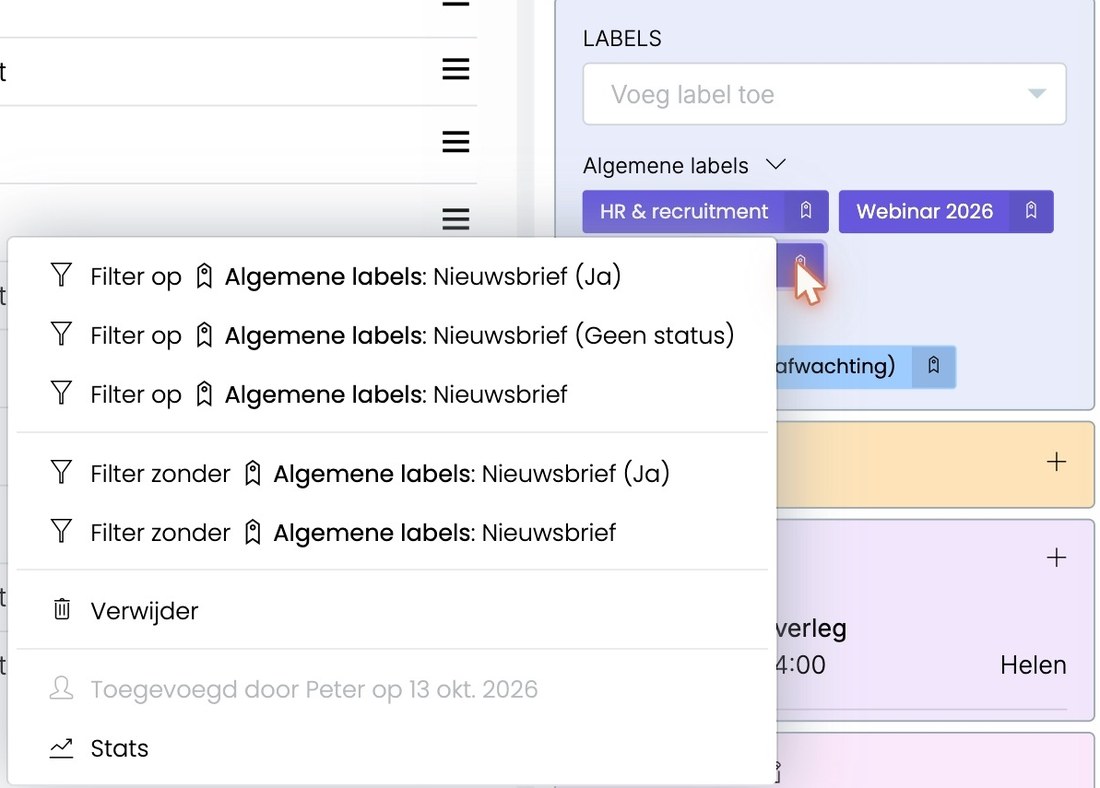
Searching by tag
Type # and the start of the tag in the search field, for example #news. You then also see the statuses, such as Newsletter (Yes).
What next?
After filtering, the bulk action button appears at the top. Use it to continue with the filtered group:
Tip: create a separate contact type or tag for your most important prospects, for example 'Hot prospect'. Then you have them all together with one filter.
Was this article helpful?
That’s Great!
Thank you for your feedback
Sorry! We couldn't be helpful
Thank you for your feedback
Feedback sent
We appreciate your effort and will try to fix the article