Every contact has its own archive. It contains everything to do with that contact: emails, appointments, tasks, call notes, memos and files. That way you see at a glance what's going on.
The video is in Dutch.
Opening the archive
- Look up the contact and click it.
- Or, in your Inbox, click ☰ next to an email and choose Go to Archive.
How the archive is laid out
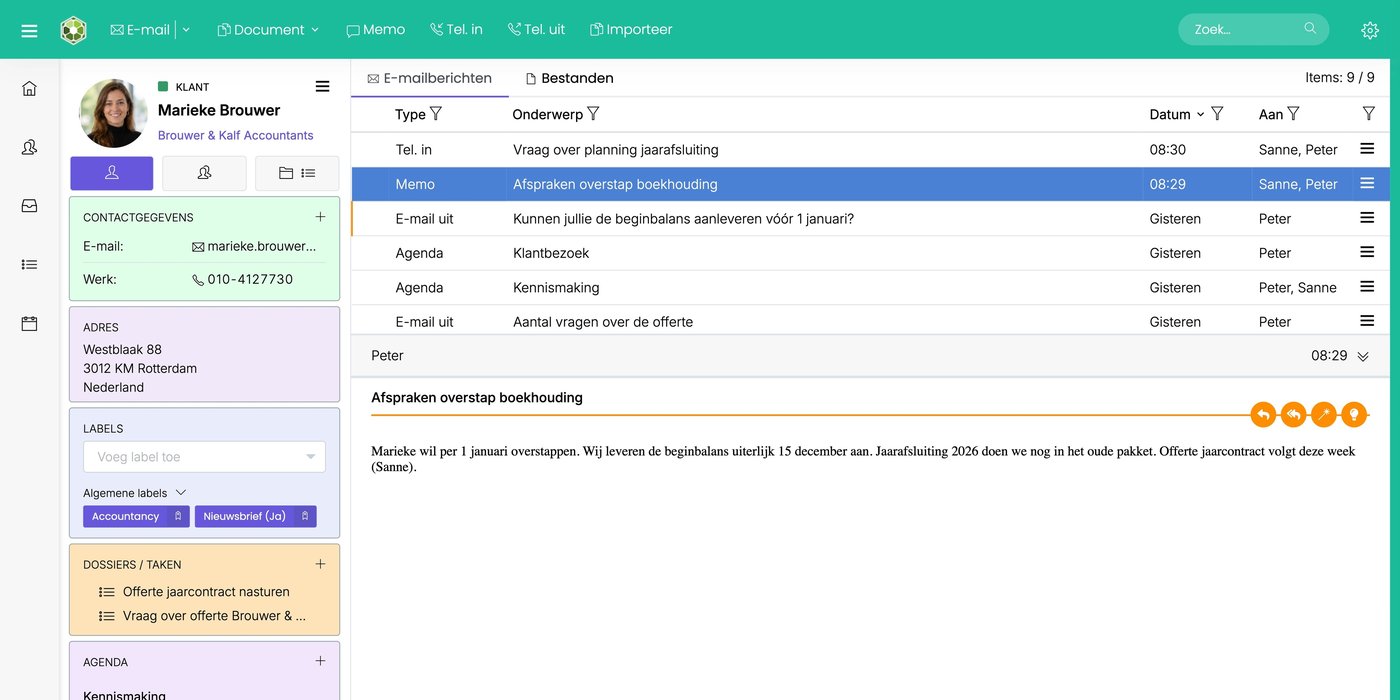
- On the left is the contact card, with blocks such as Contact details, Address, Tags, Folders / Tasks, Calendar and Extra details. Use ☰ at the top right of the card to edit the contact.
- At the top you create something new for this contact right away: Email, Document, Memo, Call in, Call out or Import (a file).
- In the middle is the list of everything linked to the contact, newest first.
- Below that you see the item you click in the list.
The tabs
| Tab | What you see |
|---|---|
| Emails | All communication: emails, appointments, tasks, call notes and memos. |
| Files | All of the contact's files, such as attachments, documents and invoices. |
| Time | The time recorded on tasks for this contact. |
| Revenue | The contact's invoices and revenue. |
| Journey | The automation the contact is part of (coming soon). |
The Revenue and Journey tabs are not yet available to everyone.
Opening a company's archive? Then tick Show all communication with this company. You then also see everything from the contact persons linked to the company.
Searching and filtering
Use Search... at the top right to search the contact's messages and files, including their content.
Click the funnel next to a column name, for example Type. Choose what you want to see, for example only call notes or only tasks. You can also filter on Subject, Date and To.
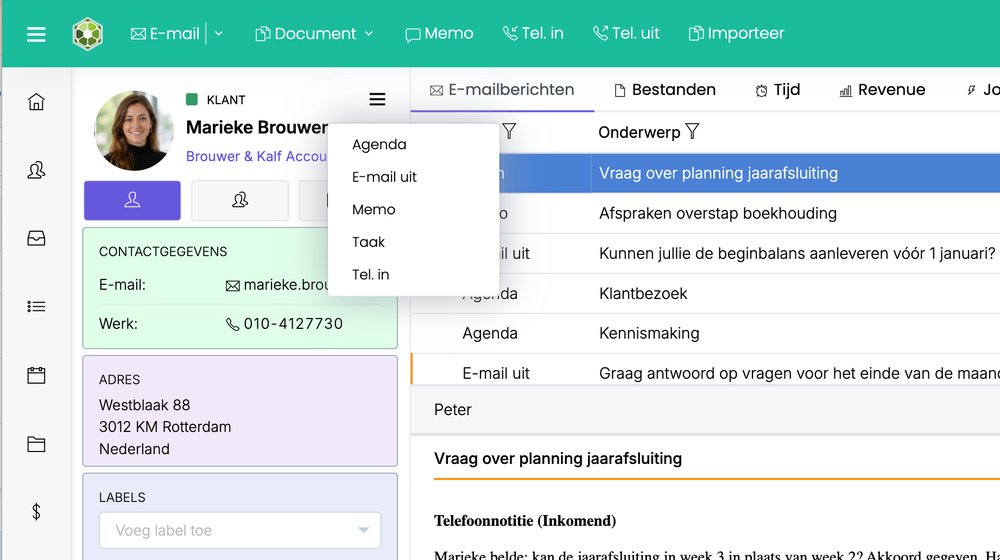
More options per item
Click ☰ next to an item in the list.
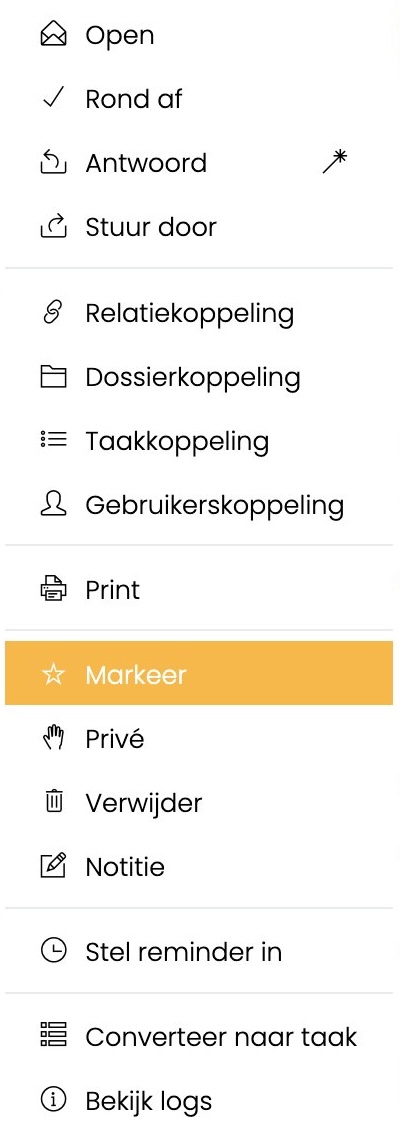
- Open, Finish, Reply, Forward: just like in your Inbox.
- Links (Link to Contact, Link to Folder, Link to Task, Link to Colleague): link the item to another contact, a folder, a task or a colleague. A colleague you link receives the item in their Inbox. Read more: Linking emails to contacts
- Print and Highlight.
- Private: hide the item from colleagues.
- Delete and Note: add a note to the item.
- Add reminder: get a reminder about this item at a later time.
- Convert to Task: turn it into a task. Read more: Creating and assigning tasks
- View logs: see who did what with the item, and when.
For an email, the preview also shows buttons at the top right to reply and to use AI. Read more: Using AI in your email
Was this article helpful?
That’s Great!
Thank you for your feedback
Sorry! We couldn't be helpful
Thank you for your feedback
Feedback sent
We appreciate your effort and will try to fix the article