When you link an email to a contact, you can also add the sender’s email address to that contact. All emails from that address then end up with that contact. Useful, but if you chose the wrong contact, all those emails are in the wrong place. Here’s how to fix it.
How does this happen?
At the bottom of Link contact there is a check box: Also link the selected contact(s) to [email address]. If it’s ticked, the sender’s email address is added to the contact details of the contact. SpinOffice then links all emails from and to that address to this contact, including earlier emails.
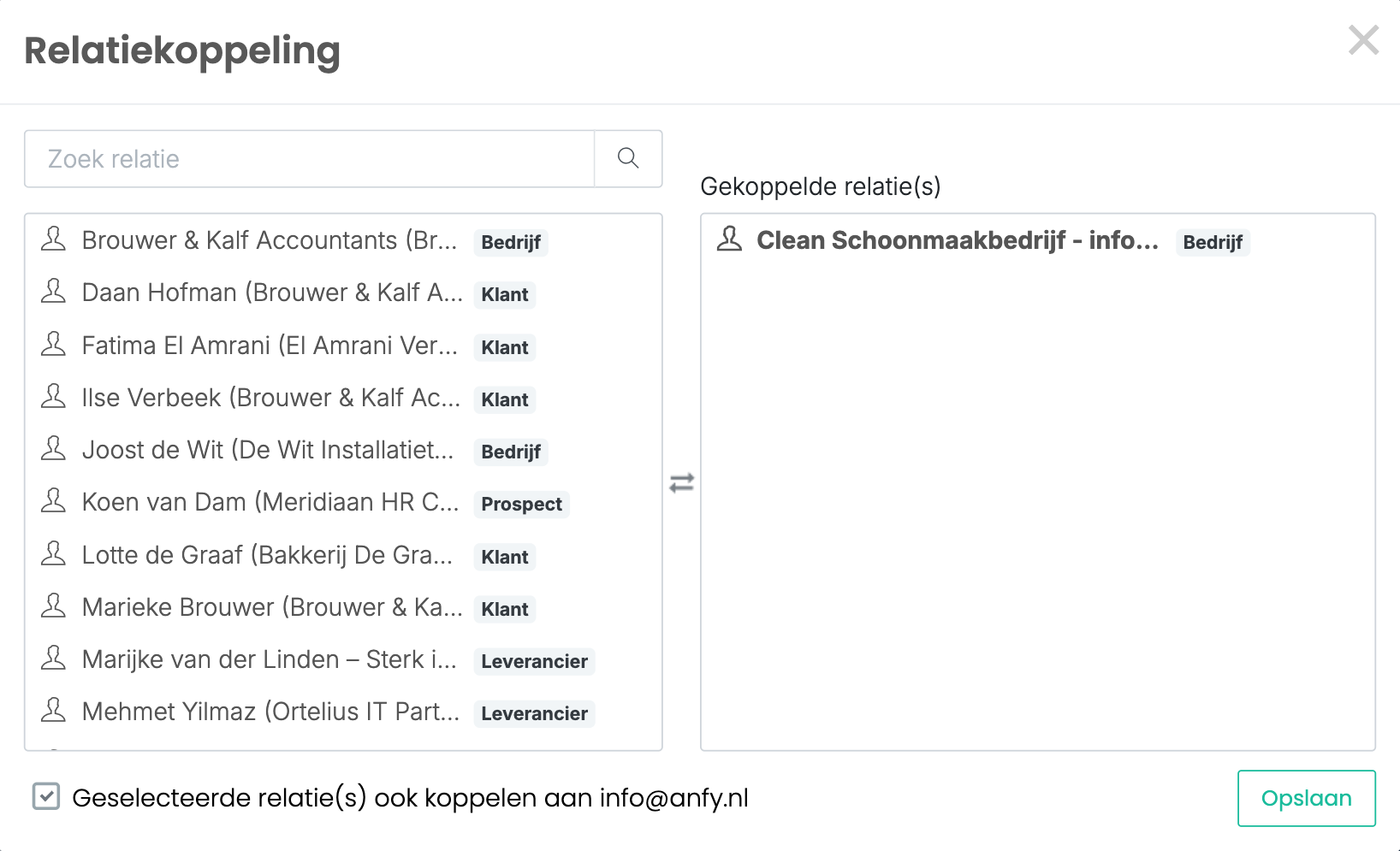
How to unlink the emails
- Open the contact the emails are wrongly linked to.
- Under Contact details, find the email address that doesn’t belong there.
- Right-click the email address and choose Delete.
- Leave Also unlink all messages from this contact ticked and click OK.
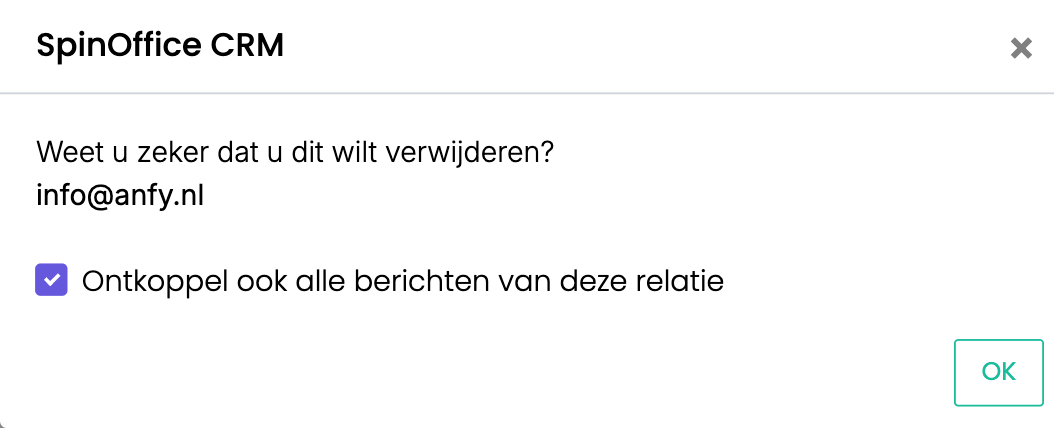
The email address is removed from the contact, and all emails from that address are unlinked from it. Untick the box and only the email address disappears: the emails stay linked to the contact.
Then link them correctly
Link the email again, this time to the right contact. Only tick the box if the address really belongs to that contact. Read more: Linking emails to contacts
Was this article helpful?
That’s Great!
Thank you for your feedback
Sorry! We couldn't be helpful
Thank you for your feedback
Feedback sent
We appreciate your effort and will try to fix the article