In the Inbox and when you write an email, AI helps you read and reply faster. You always check and send it yourself. Works from Pro.
Prefer to watch? The video shows how it works (in Dutch).
Reading an email
Below the subject of an email is an orange line with AI buttons. Which buttons you see depends on the email.
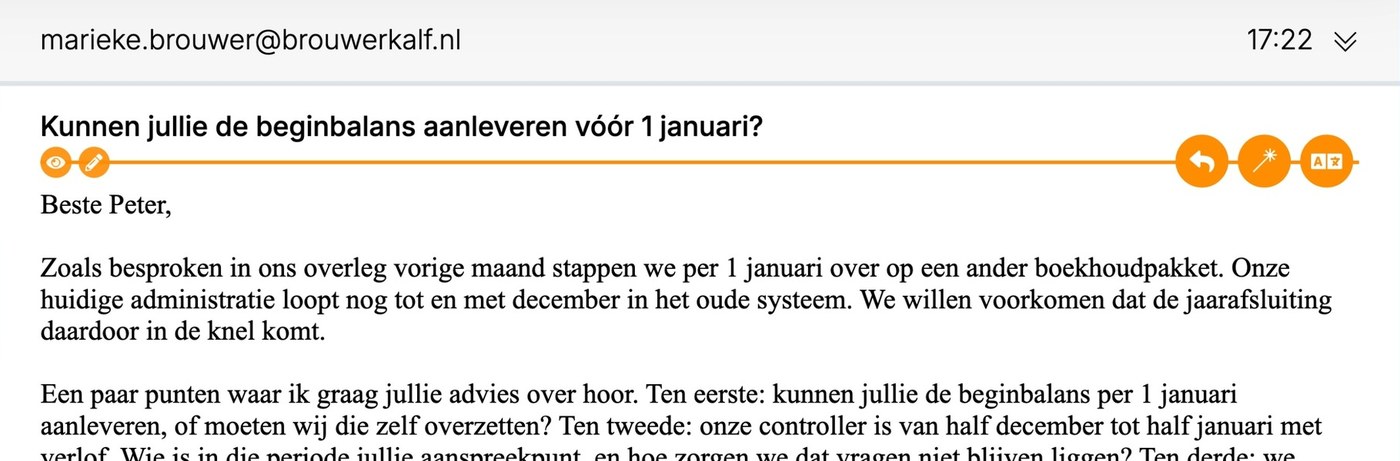
- Summary (light bulb): summarizes a long email in the subject line. The eye icon shows the original subject, the pencil lets you edit it.
- Reply (arrow): creates a draft reply based on the email.
- Reply all: the same, for all recipients.
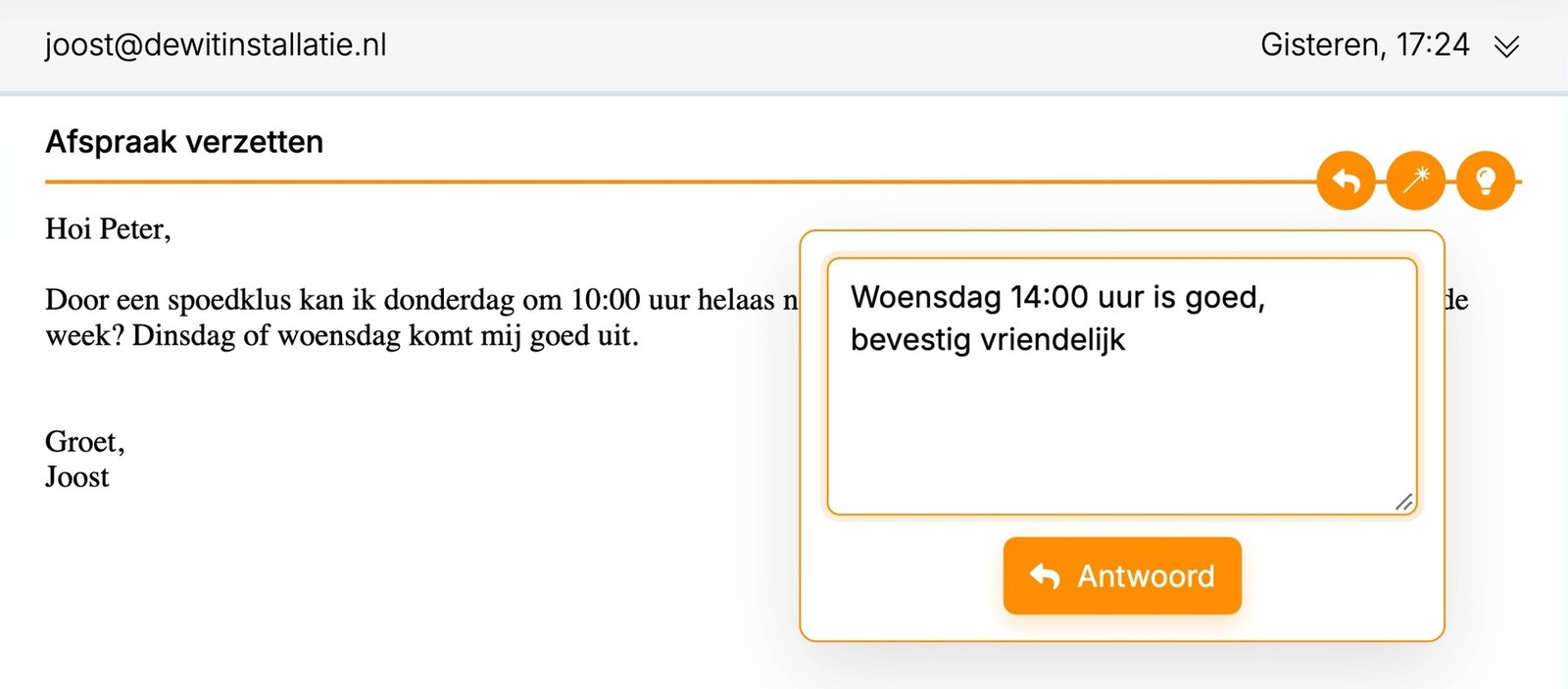
- SmartReply (magic wand): describe in one sentence what you want to reply and click Reply. The AI writes the email.
- Translate (A文): translates the email you received.
This is how SmartReply works: you type, for example, "Wednesday 2 pm works, confirm politely" and get a complete email to check.
Want to reply without AI? Use the Reply button in the blue bar at the top. You then get an empty reply with your own template.
Writing an email: SmartMail
To the right of your text is an orange button with a magic wand. It opens the SmartMail menu:
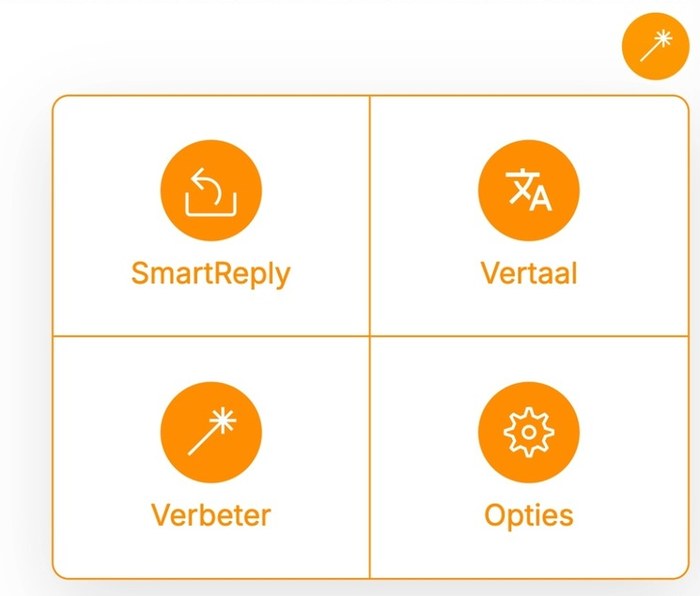
- SmartReply: write an email based on a single sentence.
- Translate: into English, French, German or Dutch.
- Improve: have your text improved.
- Options: the SmartMail settings.
Please note: SmartMail only changes the Content block of your template. Your greeting and closing stay as they are, even when translating. Change them yourself, or choose a template in the right language. Read more: Adding the Content field to your email template
Always read the text before you send it. AI can make mistakes.
Was this article helpful?
That’s Great!
Thank you for your feedback
Sorry! We couldn't be helpful
Thank you for your feedback
Feedback sent
We appreciate your effort and will try to fix the article