The Content block is where you type the text of your email. Why is this so useful?
- When you create a new email or a reply, the cursor automatically jumps to the Content block.
- The text you type is preserved, even if you switch templates while composing.
- The SmartMail AI email assistant only works if you use the Content block.
How to add the Content block to a template
- In SpinOffice, go to the menu option Administration → Email → Email Templates.
- Click Open and select the default email template.
- Not sure which template is the default? Click Action types at the top and check which template is linked to the type Email Out.
- Open the default template.
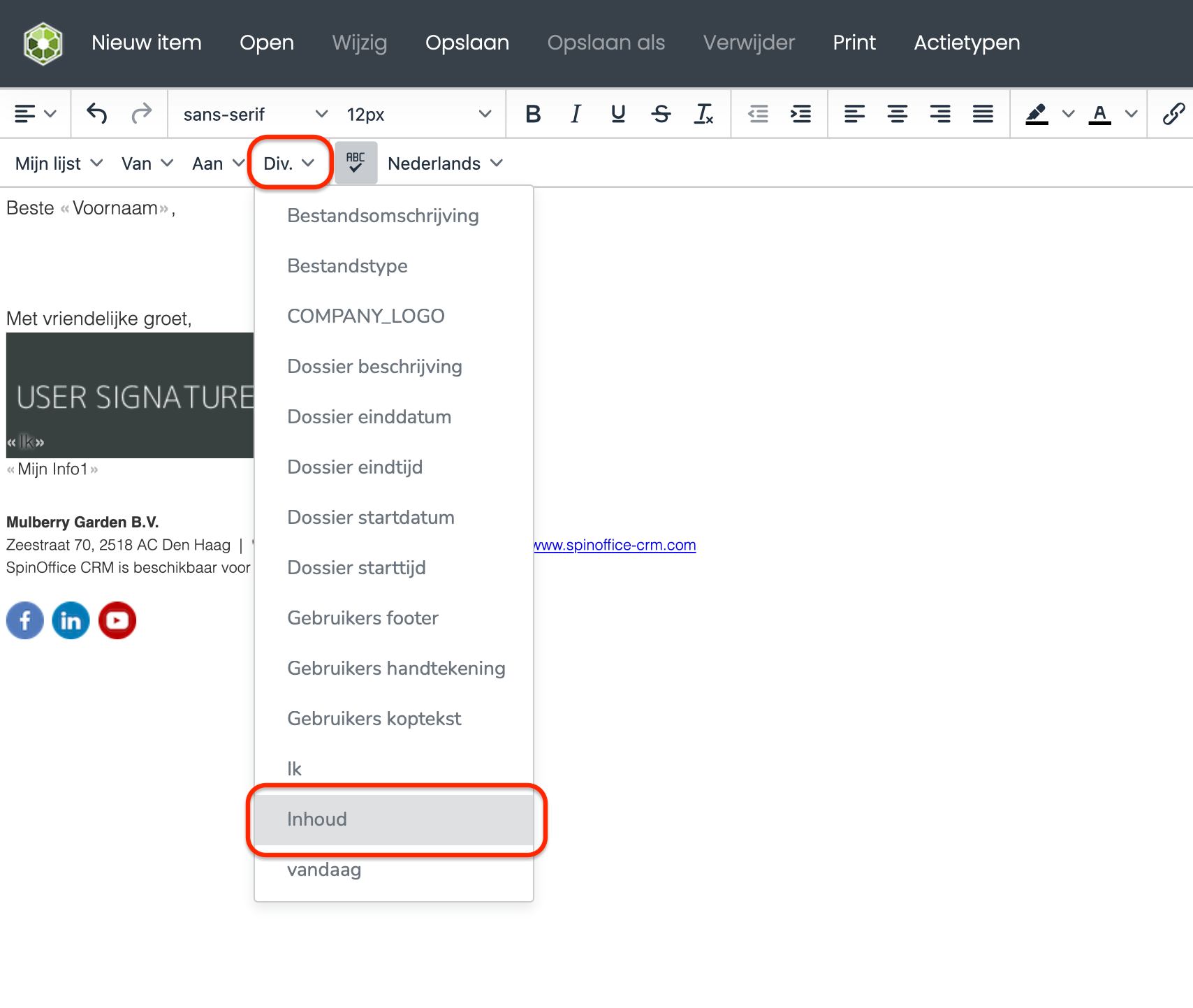
- Place the cursor on the line below the salutation.
- In the action bar, click Misc. → Content.
- The Content block is added immediately (see the example below).
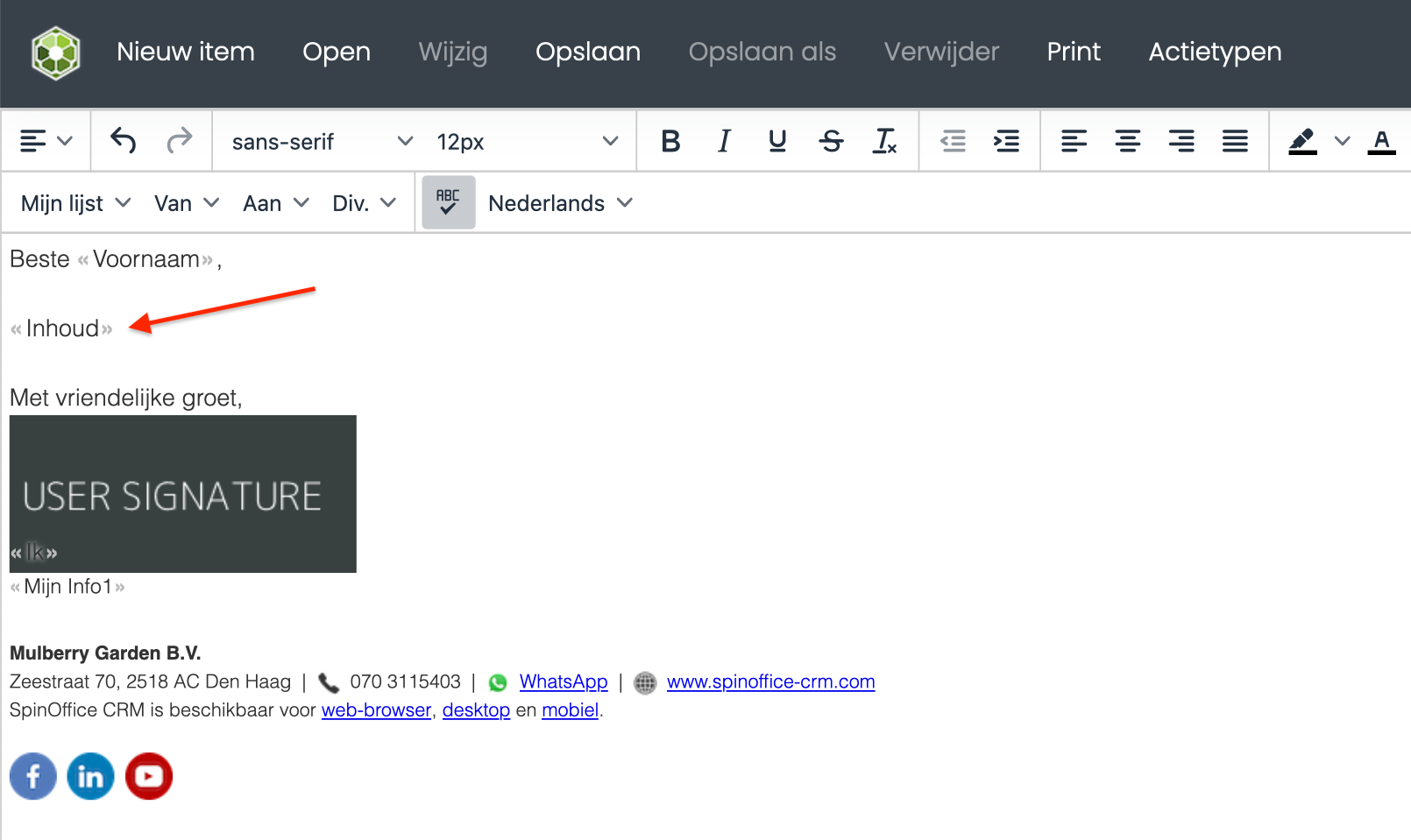
- Click Save to apply the change to the templateoeren.
That's it! The Content block works right away once it's been added. So the next time you compose a new email, the Content block will appear.
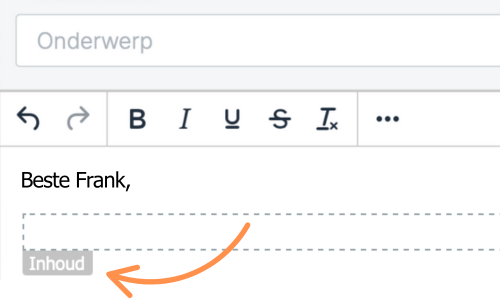
And you're ready to start using the SmartMail AI email assistant!
Was this article helpful?
That’s Great!
Thank you for your feedback
Sorry! We couldn't be helpful
Thank you for your feedback
Feedback sent
We appreciate your effort and will try to fix the article