In the limited version of SpinOffice, two document templates are defined, allowing you to see how SpinOffice can fill an MS Word template with text fields from SpinOffice. In the Pro version, you can edit the templates, copy them, or import new templates.
How to use a document template
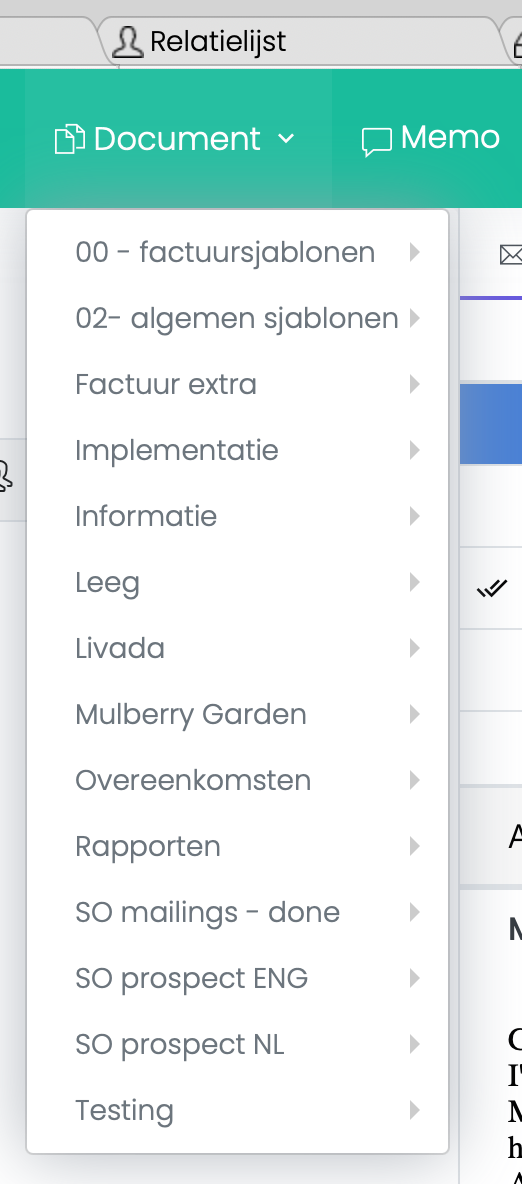 Go to the contact for which you want to create a document template.
- Click on the small arrow next to the document menu in the toolbar.
- Pick the document of your choice.
- The document is automatically created and opened in MS Office, where you can adjust the content.
- On save, the document will be uploaded to SpinOffice again with the latest version.
- Go to the contact's archive, where you can find the created document.
How to manage the document templates (in Pro version only)
- Via the menu option Administration -> Document templates.
Edit existing document templates
- Choose 'Open'
- Select the document template of your choice and click on the link to open the document template
- You can change the text and update the bookmarks (see Using bookmarks)
Create new document template
You can choose an existing template and use that as the base for your new document template. To do so, do not open the document but choose 'Save As' in the SpinOffice menubar. Give the document template a new name and press Save.
You can also import any MS Word document and use that document as a template within SpinOffice. To do so, choose Import from the menu and save the template in SpinOffice. Then, use bookmarks to tell SpinOffice where you want to have SpinOffice content to be placed. Read more about bookmarks below.
Using Bookmarks in document templates
Bookmarks are used in MS Word to point to a location in a document. SpinOffice can use that to jump to a bookmark and place data from the database there. The best way to do so is to:
- Place text in the documents (like Firstname)
- Highlight the text
- Choose Insert -> Bookmark from the MS Word menu
- Type the bookmark name (see list below)
When you save and use the template, SpinOffice will find the bookmark and replace the text with the data from SpinOffice. Each bookmark can be used once.
Address
| Bookmark | Description |
| Address_line1 | Address line 1 |
| Address_line2 | Address line 2 |
| Address_line3 | Address line 3 |
| Address_street | Address street |
| Address_street_number | Address street number |
| Address_Zipcode | Address zipcode |
| Address_City | Address city |
| Address_Country | Address counry |
| Address_incl_initials | Address including initials + lastname |
Contact information
| Bookmark | Description |
| Firstname | Firstname of the contact |
| Lastname | Lastname of the contact |
| Lastname_incl_prefix | If lastname has a prefix, this is added |
| Lastname_incl_initials | Initials and lastname |
| Line_Attention | To the attention of line |
| Contact_type | Contact type |
| Info_1 | Contact info_1 (= by default "job title") |
| Info_2 | Contact info_2 |
| Info_3 | Contact info_3 |
| Info_4 | Contact info_4 |
| Info_5 | Contact info_5 |
| Info_6 | Contact info_6 |
| Info_7 | Contact info_7 |
| Info_8 | Contact info_8 |
| Info_9 | Contact info_9 |
| Info_10 | Contact info_10 |
| Info_11 | Contact info_11 |
| Info_12 | Contact info_12 |
| Info_13 | Contact info_13 |
| Info_14 | Contact info_14 |
| Info_15 | Contact info_15 |
| Info_16 | Contact info_16 |
| Info_17 | Contact info_17 |
| Info_18 | Contact info_18 |
| Info_19 | Contact info_19 |
| Info_20 | Contact info_20 |
| Number_mobile | Contact mobile nr |
| Number_private | Contact private nr |
| Number_work | Contact work nr |
| Number_fax | Contact fax nr |
| Contact e-mail address | |
| DebitorNr | Number 1 |
| CreditorNr | Number 2 |
| Date | Contact date of birth |
| Dear | Dear contact… |
| Address | Contact complete address |
| Address_incl_attention | Contact address incl. attn |
| Project_description | Project description |
| Project_type | Project type |
| Project_code | Project activity code |
| File_description | File description |
| File_type | File type |
User information
| Bookmark | Description |
| My_signature | User signature |
| My_firstname | User firstname |
| My_lastname | User lastname |
| My_mobile | User mobile |
| My_info_1 | User info_1 |
| My_info_2 | User info_2 |
| My_info_3 | User info_3 |
| My_info_4 | User info_4 |
| My_info_5 | User info_5 |
| My_info_6 | User info_6 |
| My_info_7 | User info_7 |
| My_info_8 | User info_8 |
| My_info_9 | User info_9 |
| My_info_10 | User info_10 |
| My_email | User mail address |
Other fields
| Bookmark | Description |
| AccManager | Contact account manager |
| AccManagerSignature | Account manager signature |
| Today | Todays date |
Was this article helpful?
That’s Great!
Thank you for your feedback
Sorry! We couldn't be helpful
Thank you for your feedback
Feedback sent
We appreciate your effort and will try to fix the article