With an email template, every email looks the same: with your logo, your signature and a fixed layout. You can also make templates with standard text, for example for a quote, an invitation or a payment reminder.
Please note: you can only create and edit email templates with the SpinOfficeAdmin or Manage email templates right. Want a colleague to manage templates without access to the rest of Administration? Then give them only the Manage email templates right.
Opening the templates
Go to ☰ > Administration > Email > Email templates.
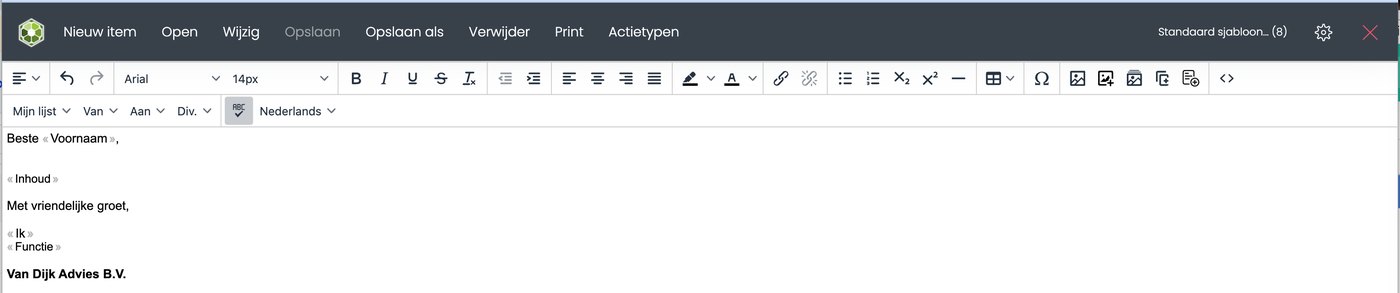
The template builder opens. At the top are the buttons New, Open, Edit, Save, Save as, Delete, Print and Action types.
Opening an existing template
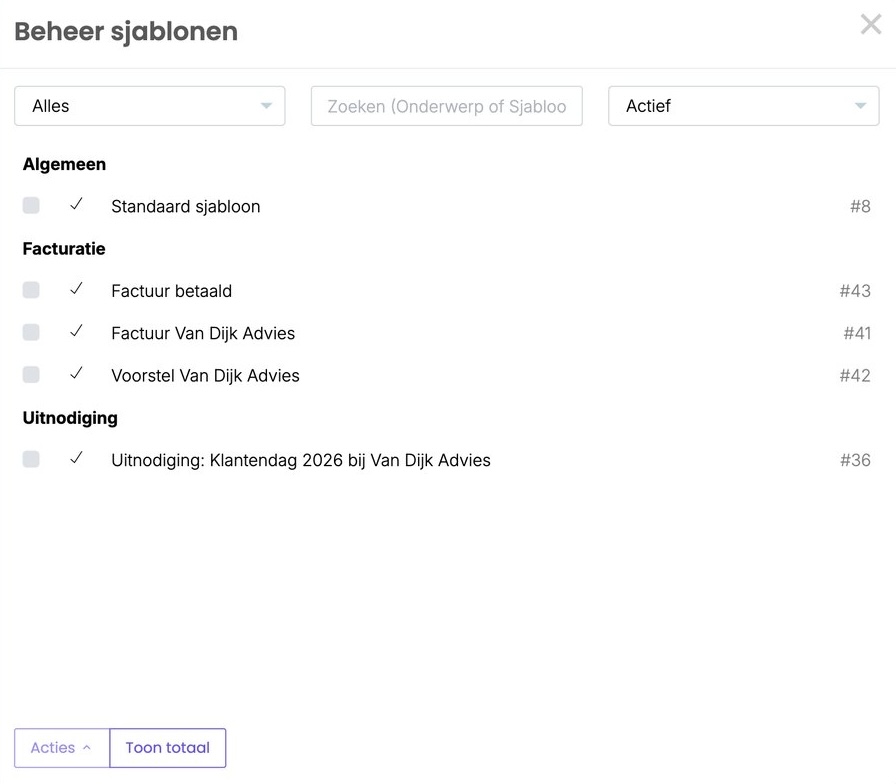
Click Open. You see all templates, grouped by tab, such as General or Invoicing. Search by subject or name, or filter by tab. Click a template to open it.
Creating a new template
- Open a template that is similar, for example the Default template.
- Click Save as and give the template a name.
- Edit the text and click Save.
Or click New. You then get a copy of the default template.
Merge fields
Merge fields are the words between « and », such as «First name». SpinOffice fills them in automatically when you create the email. You choose them in the second bar of the builder:
| Menu | What's in it | Examples |
|---|---|---|
| My list | Your own details | your first name, job title, phone number and company name |
| From | Details of the contact the email comes from | first name, company name, debtor number |
| To | Details of the recipient | first name, last name, salutation, address line 1, job title, account manager |
| Misc. | Other fields | «Content», today's date, user signature, company logo, folder details |
Your own details come from your user profile. Fill it in completely via ☰ > Administration > User settings > User profile.
The Content block
Put the «Content» field in every email template. That's where you type your text, and the AI assistant only works if that field is in the template. Read how: Adding the Content field to your email template
Template settings
Click Edit to change the settings of the open template.
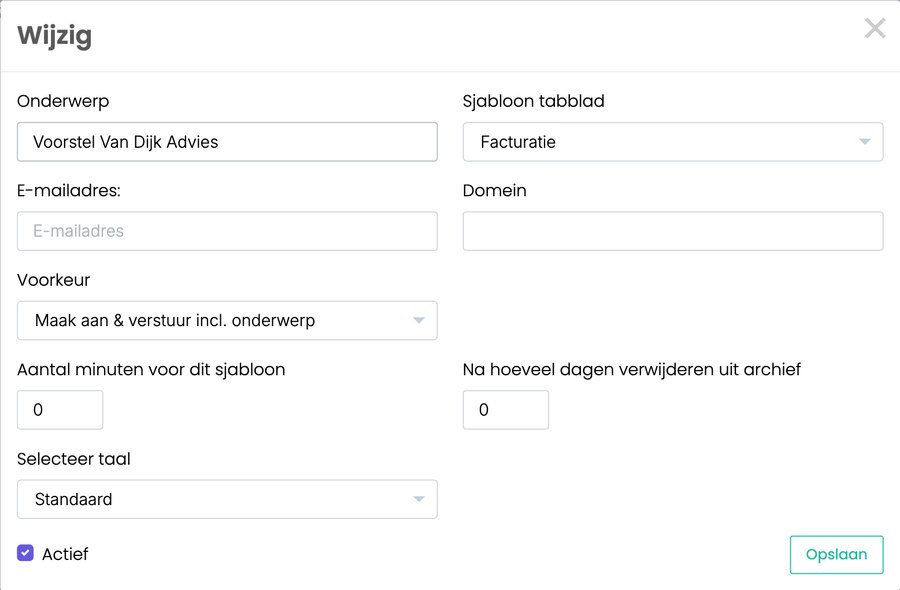
- Subject: the name of the template. Depending on the preference, also the subject of the email.
- Template tab: the group the template is in, for example Invoicing. You manage tabs via ☰ > Administration > Email > Template tabs.
- Preference: determines whether the template's subject also becomes the subject of the email.
- Create & send incl. subject: the subject is filled in straight away. Handy for mailings and standard emails, such as an invitation or a payment reminder.
- Create & send: the subject stays empty and you fill it in yourself. Choose this for your default template, otherwise every email gets 'Default template' as its subject.
- Email address and Domain: determine from which address or domain emails with this template are sent. Handy, because everyone uses the same templates.
- Email address: the email is always sent from this address, for example an invoice email always from accounts@.
- Domain: if a user has several addresses or domains (such as peter@ and p.dewaal@), SpinOffice chooses the address on this domain.
- Number of minutes for this template: the time you count for an email with this template. That time is added to the contact, on the Time tab.
- Delete from archive after how many days: emails with this template are automatically deleted from the archive after this number of days. Handy for mailings you don't want to keep forever. Leave it at 0 to always keep emails.
Please note: this deletion is permanent. The emails don't go to the Trash and you can't restore them. - Select language: the language of the email, for the spell checker.
- Active: if you turn this off, you no longer see the template in the lists. It isn't deleted and you can turn it back on later.
Deleting a template
No longer using a template? Then preferably turn off Active. With Delete, the template disappears; you can still restore it for 120 days.
Which template is the default?
For a new email, SpinOffice uses the template linked to the action type Email out. You see and change this via Action types in the builder.
Choosing a different template while writing
Writing an email? Then choose a different template in the drop-down list at the bottom of the window (by default it says Default template). The text you've typed stays if the template has the «Content» field.
Was this article helpful?
That’s Great!
Thank you for your feedback
Sorry! We couldn't be helpful
Thank you for your feedback
Feedback sent
We appreciate your effort and will try to fix the article