In Company preferences, you set what applies to the whole organization. A change applies to all users.
Go to ☰ > Administration > Company preferences. You need the SpinOfficeAdmin right for this.
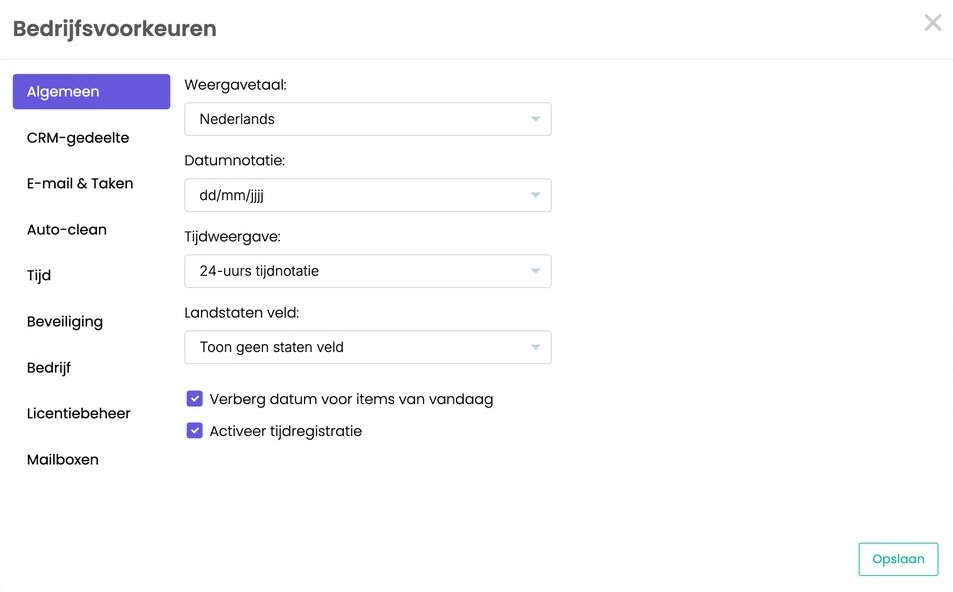
General
- Display language: the language of SpinOffice.
- Date format and Time format: for example dd/mm/yyyy and 24-hour clock.
- Country state field: an extra field on the contact card for states or provinces, as in the US or Canada.
- Hide date for today's items: for today's items you only see the time.
- Enable time registration: turns on time recording. Read Recording time on a task
CRM part
- Show communication of employees in employer's archive: in a company's archive you also see everything from its contact persons.
- Show folders of employer in employee's archive: for a contact person you also see the company's folders.
Email & Tasks
- Preferred view in Inbox: show the linked contact, or the sender with email address.
- Keep contact link on forwarding a message: a forwarded email stays linked to the same contact.
- Allow removal of attachments without deleting the message: if this is off, nobody can delete an attachment on its own.
Auto-clean
Keep your database clean. You set after how many days SpinOffice cleans up:
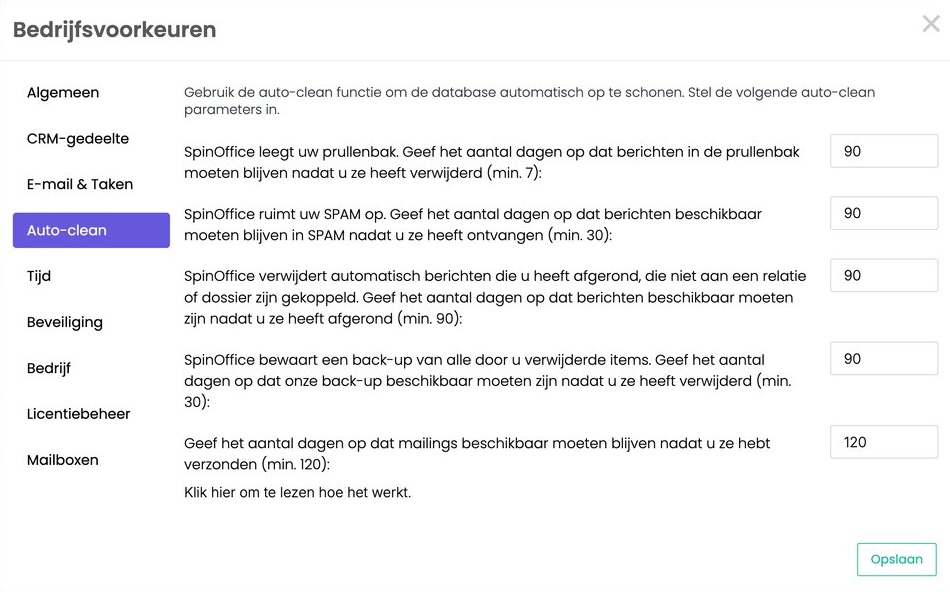
| What | After how many days | Minimum |
|---|---|---|
| Emptying the trash | after deletion | 7 |
| Cleaning up spam | after receipt | 30 |
| Finished messages not linked to a contact or folder | after finishing | 90 |
| Our backup of deleted items | after deletion | 30 |
| Mailings | after sending | 120 |
Please note: once something has been cleaned up, it's gone. As long as the backup still exists, we can restore it for you.
Time
How much time SpinOffice counts by default for an email and a phone call (Charge for email in, Charge for email out, Charge for call (in/out)). That time is added to the contact, on the Time tab.
Security
Turn on two-factor authentication for the whole organization. Read Setting up two-factor authentication
Company
Your company details: name, address, IBAN, CoC number and VAT number. You use them as merge fields in email templates.
License dashboard
Here you see your licenses and their expiration date, and you assign a license to a user. Read Adding a user
Mailboxes
All connected mailboxes of the organization, with the last sync and whether the connection works (green or red). Read Connecting Microsoft 365 or Outlook
Was this article helpful?
That’s Great!
Thank you for your feedback
Sorry! We couldn't be helpful
Thank you for your feedback
Feedback sent
We appreciate your effort and will try to fix the article