With a task, you record what needs to be done, by when and by whom. You link the task to a contact, so you also see it in that contact's archive.
The video is in Dutch.
Creating a task
You create a task in one of these ways:
- Via ☰ > New > Task.
- On the Kanban board, with New task at the top left or with the + above the Current tasks column.
- From a contact: click the + in the Folders / Tasks block and choose a new task. The contact is then already filled in.
- From an email. See below.
The Task window
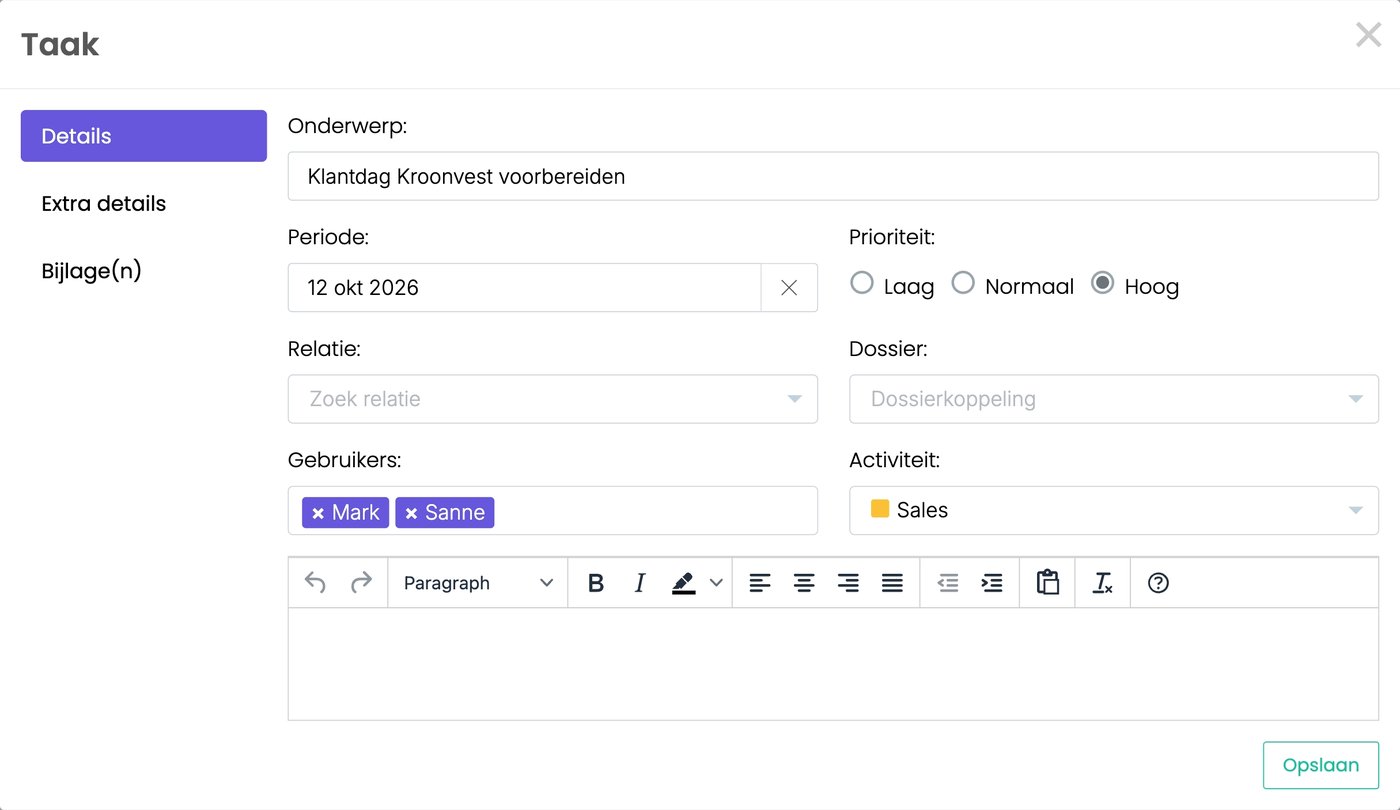
- Subject: what needs to be done.
- Period: the date the task needs to be done by. If you remove the date with the cross, the task goes into the Tasks without date column.
- Priority: Low, Medium or High. A task with priority High gets a red label.
- Contact: the contact the task belongs to.
- Folder: link the task to a folder.
- Users: who carries out the task. You can choose several colleagues.
- Activity: the type of work, for example Sales. You see the color on the Kanban board.
Below that, you write an explanation. Under Attachment(s), you add files. Click Save.
Creating a task from an email
Do you, or a colleague, need to do something with an email? Then turn it into a task.
- In your Inbox, click ☰ next to the email and choose Convert to Task.
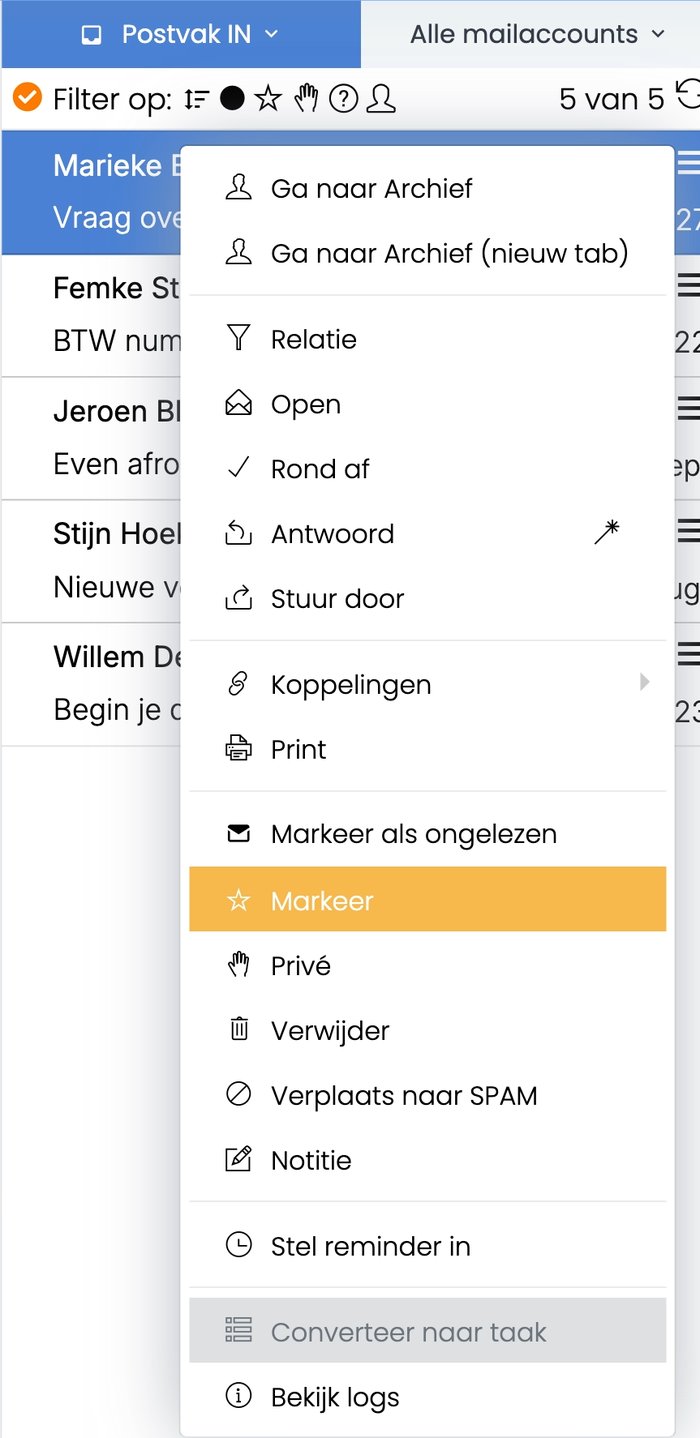
- The Task window opens. The subject, the contact and the text of the email are already filled in.
- Under Users, choose who carries out the task, fill in the date and click Save.
The email stays in your Inbox, with a task icon in front of it. That way you see a task has been made from it. You finish the email yourself, as always. The task stays until you finish it.
A task for a colleague
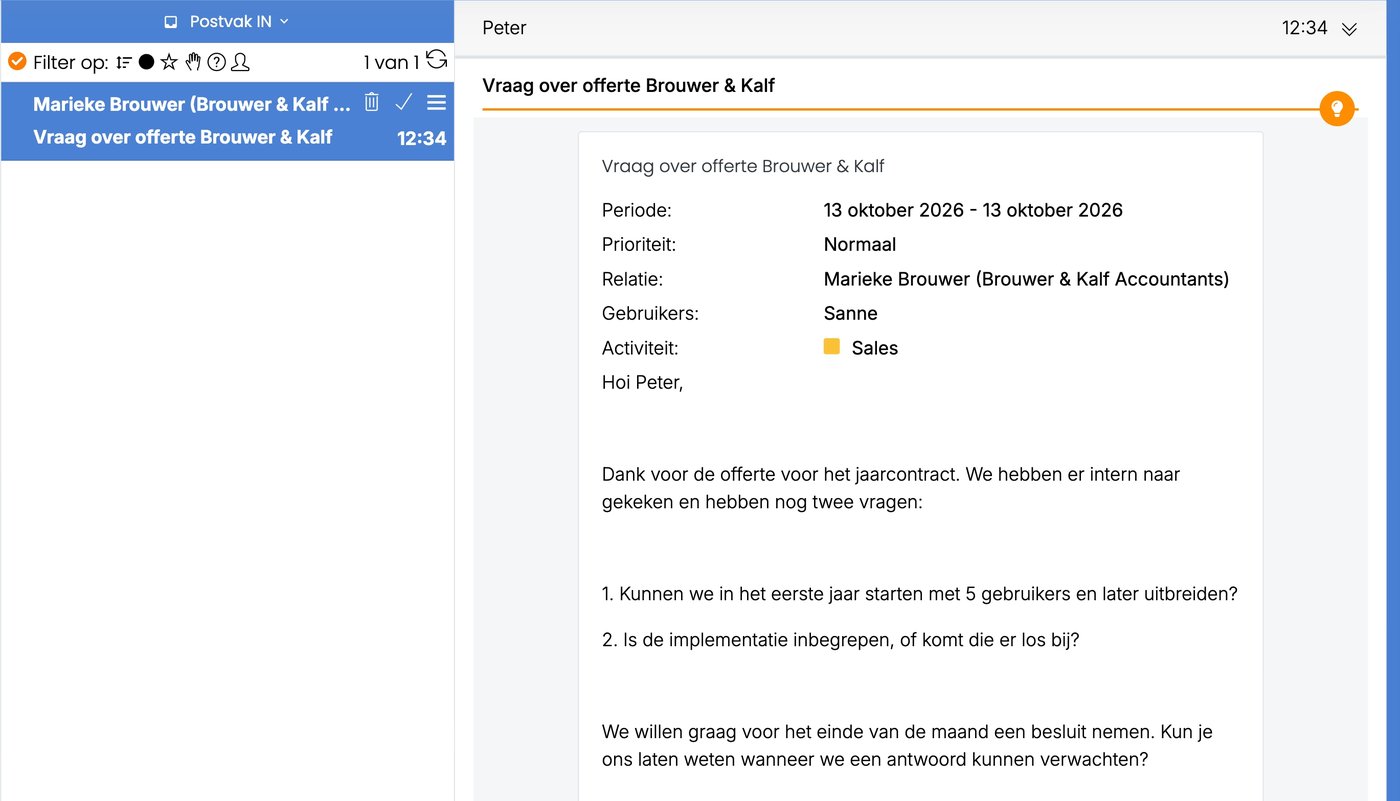
Add a colleague under Users, and they receive the task as a notification in their Inbox, with all the task details. The task also appears on that colleague's Kanban board. There's no separate pop-up or reminder.
Finishing a task
Open the task and click Finish. Or drag the task on the Kanban board to the Finished tasks column.
Finding tasks for a contact
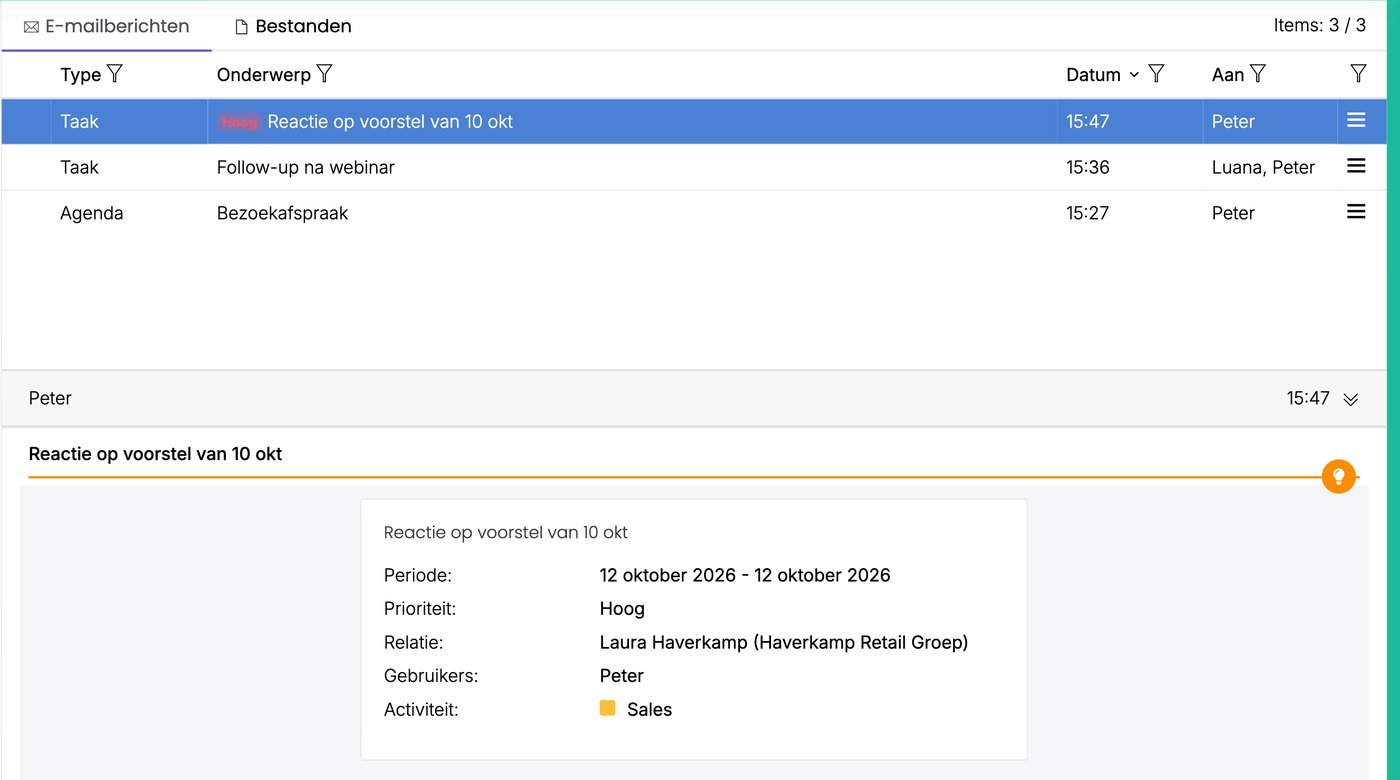
Tasks you link to a contact appear in that contact's Folders / Tasks block. You also see them in the archive, with the type Task. Click one to see the details.
Read also: The Kanban board and Recording time on a task
Was this article helpful?
That’s Great!
Thank you for your feedback
Sorry! We couldn't be helpful
Thank you for your feedback
Feedback sent
We appreciate your effort and will try to fix the article