In the calendar you see your appointments and, if you like, those of your colleagues. Appointments you link to a contact automatically appear in that contact's archive.
Prefer to watch? The video shows how it works (in Dutch).
The screen
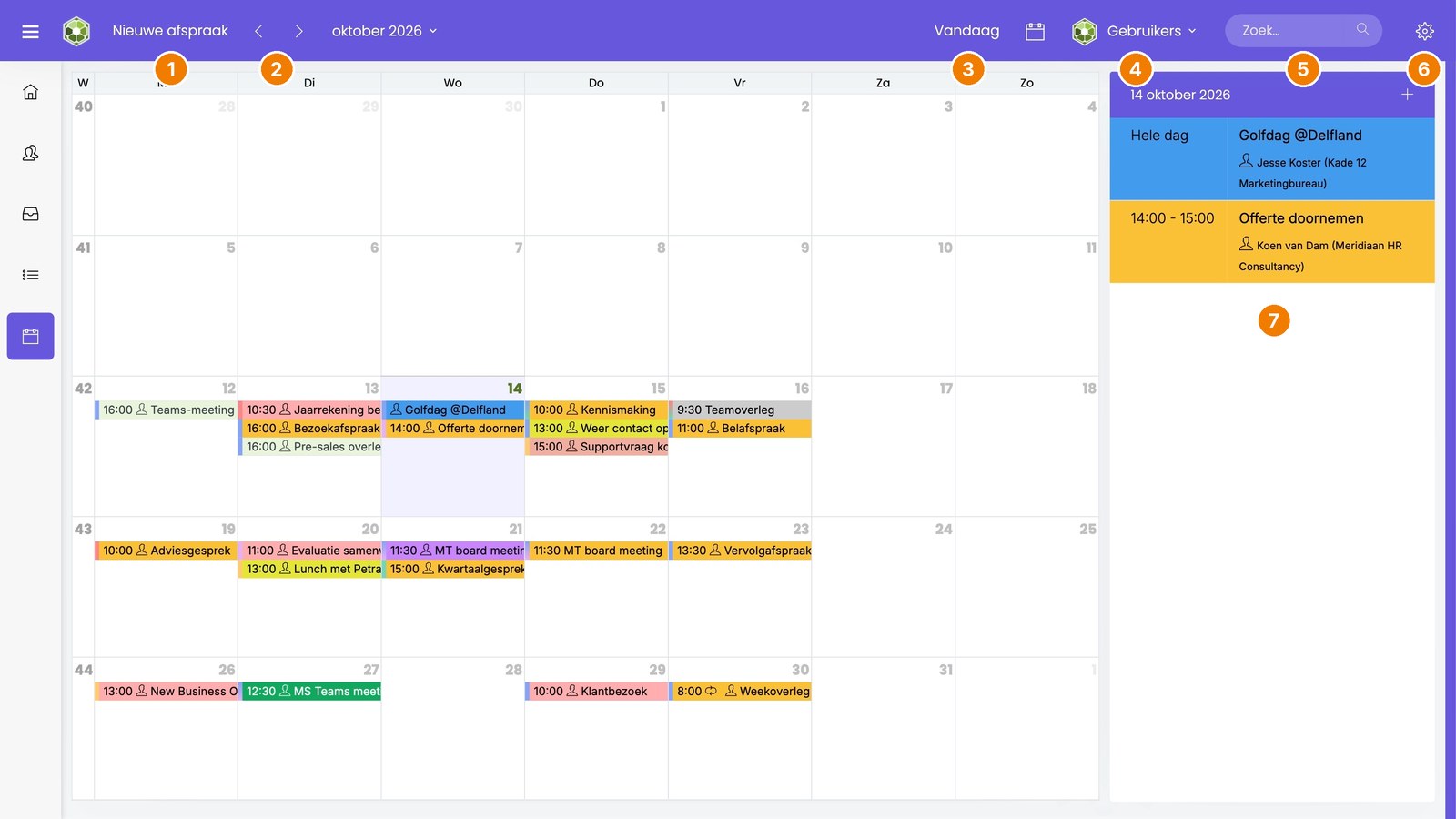
- New appointment: create an appointment. You can also double-click a day. Read more: Creating an appointment
- Arrows and month: browse through the calendar, or choose a month.
- Today: go back to today. Use the calendar icon next to it to choose the view.
- Users: also show your colleagues' calendars. Read more: Sharing your calendar with colleagues
- Search: find an appointment by contact or subject.
- Gear icon: your calendar preferences (see below).
- Day view: the appointments of the selected day. Use + to create an appointment on that day.
The color of an appointment depends on the activity, for example Sales or Internal meeting. An administrator sets the activities and their colors under ☰ > Administration > Activity codes.
Your calendar preferences
Click the gear icon. Your preferences only apply to you.
- Show day view widget: the day overview on the right.
- Show task widget: your open tasks next to the calendar.
- Show items per user: each colleague's appointments side by side.
- Show shared events separately: colleagues' appointments separate from yours.
- Share my calendar with all: all your colleagues see your calendar.
- Show birthdays: your contacts' birthdays, from the date of birth field.
- Start week on, Time interval, Day starts at and Day ends at.
- Show only deleted events: you only see appointments that have been deleted. This is how you restore an appointment you deleted by mistake (see below).
Under Actions you find Print and Sync my Office 365 calendar.
Restoring a deleted appointment
Deleted an appointment by mistake? You can restore it yourself up to 120 days after deleting it.
- In the calendar, click the gear icon and tick Show only deleted events.
- Right-click the appointment and choose Restore.
- Untick Show only deleted events again to see your normal calendar.
On your phone and in Outlook
You also see your appointments in the SpinOffice app on your phone. Read more: SpinOffice on your phone
Want your appointments in your phone's calendar app or in Outlook? Then sync your calendar with Microsoft 365, or via CalDAV. Read more: Your calendar on your phone and computer
Was this article helpful?
That’s Great!
Thank you for your feedback
Sorry! We couldn't be helpful
Thank you for your feedback
Feedback sent
We appreciate your effort and will try to fix the article