Everyone in SpinOffice has their own calendar. You decide whether your colleagues can see it. That way you see at a glance who is available.
Sharing your calendar
- Go to ☰ > Administration > User settings > CRM part.
- Choose how you share:
- With everyone: tick Share my calendar with all.
- With certain colleagues: choose them under Share my calendar with.
- Click Save.
You can also quickly share with everyone via the gear icon in the calendar: tick Share my calendar with all there.
A SuperAdmin can set this for every user: choose the user at the top left in the same place.
Viewing a colleague's calendar
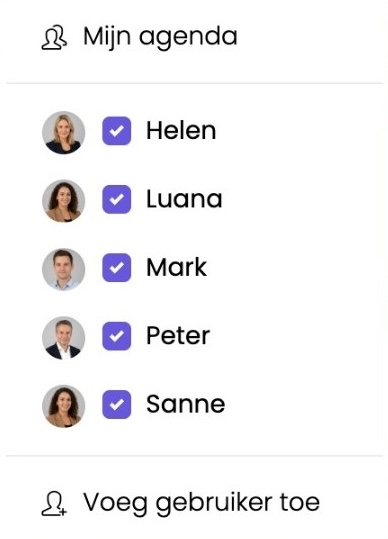
- In the calendar, click Users.
- Tick the colleagues whose appointments you want to see.
- Colleague not listed? Click Add user.
Click My calendar to see only your own appointments again.
Tip: want to see each colleague's appointments side by side? Turn on Show items per user under the gear icon.
Making appointments for a colleague
Add your colleague under Users in the appointment, and it also appears in their calendar. Read more: Creating an appointment
Private appointments
Right-click an appointment and choose Private. Your colleagues then only see that you're busy.
Was this article helpful?
That’s Great!
Thank you for your feedback
Sorry! We couldn't be helpful
Thank you for your feedback
Feedback sent
We appreciate your effort and will try to fix the article