Using Microsoft 365? Then sync your contacts with your contacts in Outlook. Through your Microsoft 365 account, they also end up on your phone. It works both ways: a change in SpinOffice appears in Outlook, and vice versa. SpinOffice syncs every 5 minutes.
Step 1: turn on syncing in SpinOffice
- Go to ☰ > Administration > User settings > Synchronization.
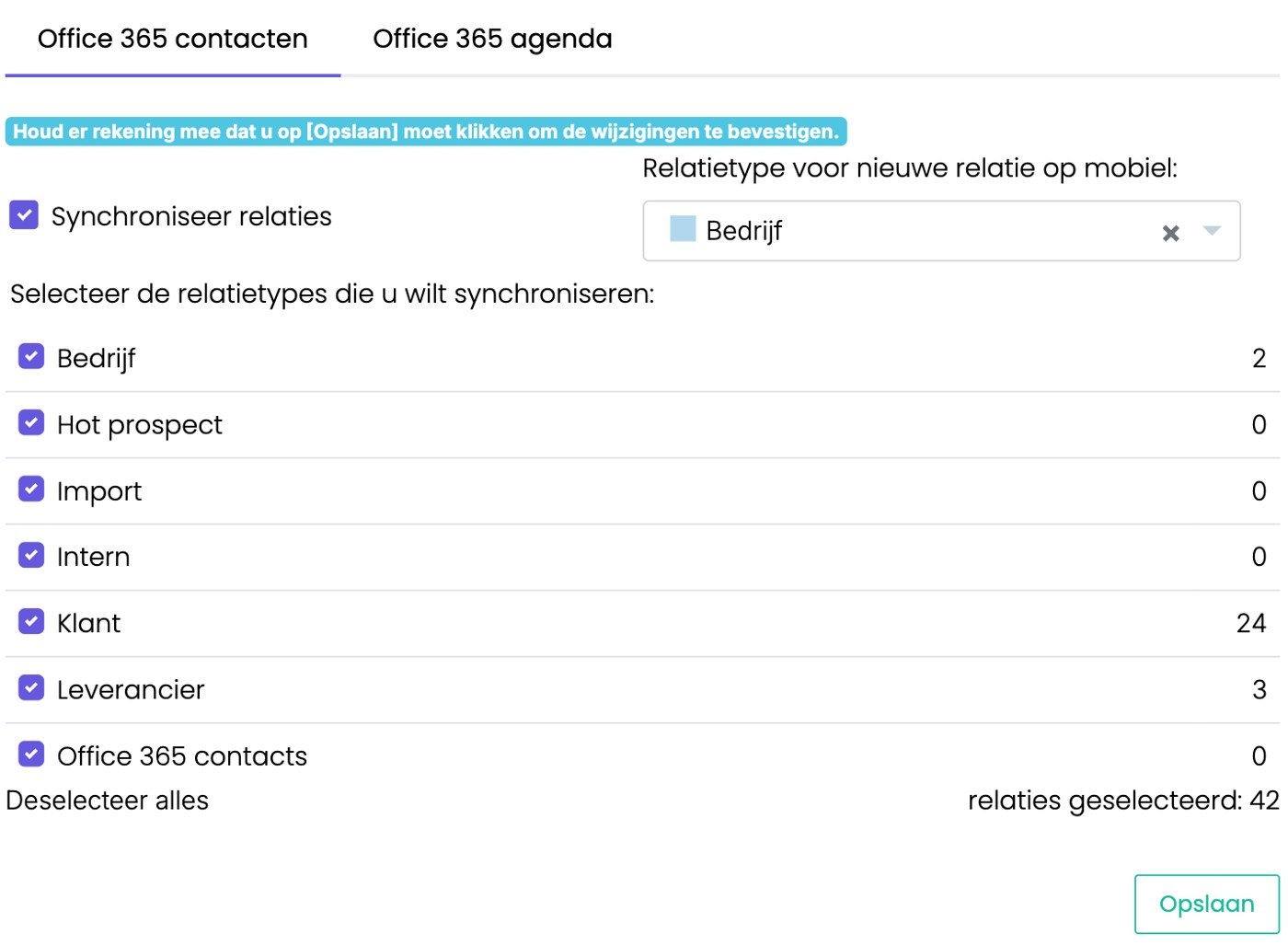
- Open the Office 365 contacts tab.
- Tick Sync contacts and confirm with Yes.
- Choose which contact types go to Outlook, for example Customer and Supplier. On the right you see how many contacts there are per type.
- Choose which contact type a contact gets when you create it later on your phone or in Outlook.
- Click Save.
- You now see the Microsoft login screen. Log in with your Microsoft 365 account.
Once the connection works, you see confetti. SpinOffice then puts your contacts from Microsoft 365 into SpinOffice, and the selected contacts from SpinOffice into Microsoft 365.
Step 2: turn on contacts on your phone
Is your Microsoft 365 account already on your phone? Then turn on contacts there:
- iPhone and iPad: go to Settings > Apps > Contacts > Contacts Accounts, choose your Microsoft 365 account and turn on Contacts.
- Android: go to Settings > Accounts, choose your Microsoft 365 account (Exchange or Outlook) and turn on Contacts. Using the Outlook app? Then turn on Save contacts for your account in the app.
Is your account not on your phone yet? Then add it first as a Microsoft Exchange or Outlook account.
Good to know
- Use Microsoft 365 or CardDAV, not both. Otherwise every contact appears twice on your phone. Read more: Contacts on your phone
- Keep the contact type Office 365 contacts ticked in the sync. Otherwise changes to those contacts don't go back to Outlook.
- Contacts that are already in Microsoft 365 also come into SpinOffice. They get the contact type Office 365 contacts. Then filter on that contact type to go through them: give them the right contact type with a bulk action and merge duplicate contacts: Merging duplicate contacts.
- Want to sync your calendar too? You do that on the Office 365 calendar tab. Read how: Syncing your calendar with Microsoft 365
Was this article helpful?
That’s Great!
Thank you for your feedback
Sorry! We couldn't be helpful
Thank you for your feedback
Feedback sent
We appreciate your effort and will try to fix the article