To automatically process Microsoft Teams transcripts in SpinOffice, a connection with Microsoft Azure must first be created. This is done through an App Registration in Azure. This allows SpinOffice to securely access meeting information and transcripts from Microsoft Teams.
Follow the steps below to create the connection.
Required permissions for App Registration
Creating an App Registration in Microsoft Azure usually requires administrator rights within Microsoft 365 / Azure.
In some organizations, regular users are not allowed to register applications. In that case, the App registrations option may not be visible or it may not be possible to create a new registration.
A Microsoft 365 administrator can allow this via the following setting:
Microsoft Entra ID → Identity → Users → User settings → App registrations
Enable the option Users can register applications.
If this option remains disabled, the Microsoft 365 administrator must create the App Registration.
Step 1 – Go to the Azure portal
Go to the Azure portal https://portal.azure.com
Log in with a Microsoft account that has administrator rights within your Microsoft 365 environment.
Step 2 – Open App registrations
In the menu, go to:
Microsoft Entra ID → App registrations
Microsoft Entra ID is the new name for Azure Active Directory (Azure AD).
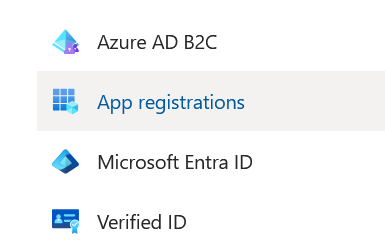
Here you can register a new application that will be used to retrieve transcripts from Microsoft Teams meetings.
Step 3 – Create a new App Registration
Click New registration and create a new app.
For example:
Name:
MS Teams Transcriptions
Leave the other default settings unchanged and click Register.
After creating the app, you will see an overview with important information.
Stap 4 – Note the required details
After registering the app, the following details are required for SpinOffice. Note these values, as you will need to enter them later in SpinOffice.
- Application (client) ID
- Directory (tenant) ID
In addition, a Client Secret must be created.
Go to:
Certificates & secrets → New client secret
Create a new secret and copy the secret value.
Step 5 – Add Microsoft Graph permissions
To retrieve transcripts from Teams meetings, several Microsoft Graph permissions must be added.
In the Azure portal go to:
API permissions → Add a permission → Microsoft Graph
Then add the following permissions:
- OnlineMeetings.Read
- OnlineMeetings.Read.All
- OnlineMeetings.ReadWrite
- OnlineMeetingTranscript.Read.All
After adding these permissions, they must be approved using Grant admin consent.
Without this approval, SpinOffice will not be able to retrieve transcripts from Microsoft Teams.
Step 6 – Enter the details of SpinOffice
Next, go to SpinOffice:
Administration → Integrations → MS Teams transcriptions
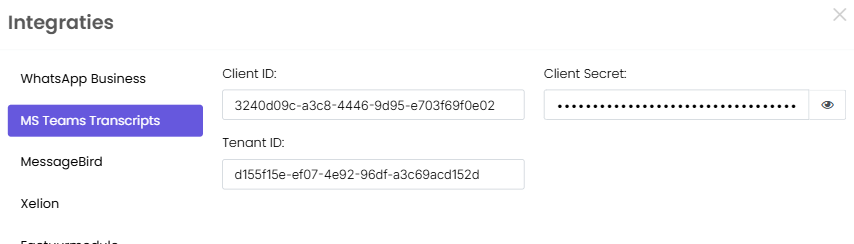
Enter the following details:
- Client ID
- Client Secret
- Tenant ID
Save the settings.
After saving, SpinOffice will be able to connect to Microsoft Teams.
Automatically process Teams transcripts in SpinOffice
Once the connection is active, SpinOffice can automatically retrieve transcripts from Microsoft Teams meetings. Using AI in SpinOffice, these transcripts can then be used to:
automatically store conversations with contacts
generate summaries
identify action points
prepare follow-up tasks
This allows Microsoft Teams meetings to be automatically converted into valuable CRM information.
Was this article helpful?
That’s Great!
Thank you for your feedback
Sorry! We couldn't be helpful
Thank you for your feedback
Feedback sent
We appreciate your effort and will try to fix the article