Here's how to connect WhatsApp Business to SpinOffice. You first arrange a few things with Meta, then you make the connection in SpinOffice. Expect about an hour of work, plus 1 to 2 days for verification by Meta.
First read what the integration does and costs: What can the WhatsApp integration do?
Part 1: arrange it with Meta
- Meta Business Suite: create a free account on Meta Business Suite, or sign in.
- Business portfolio: create a business portfolio. Already have one? Skip this step.
- Verify your business: upload the requested documents. Meta approves this within 1 to 2 days.
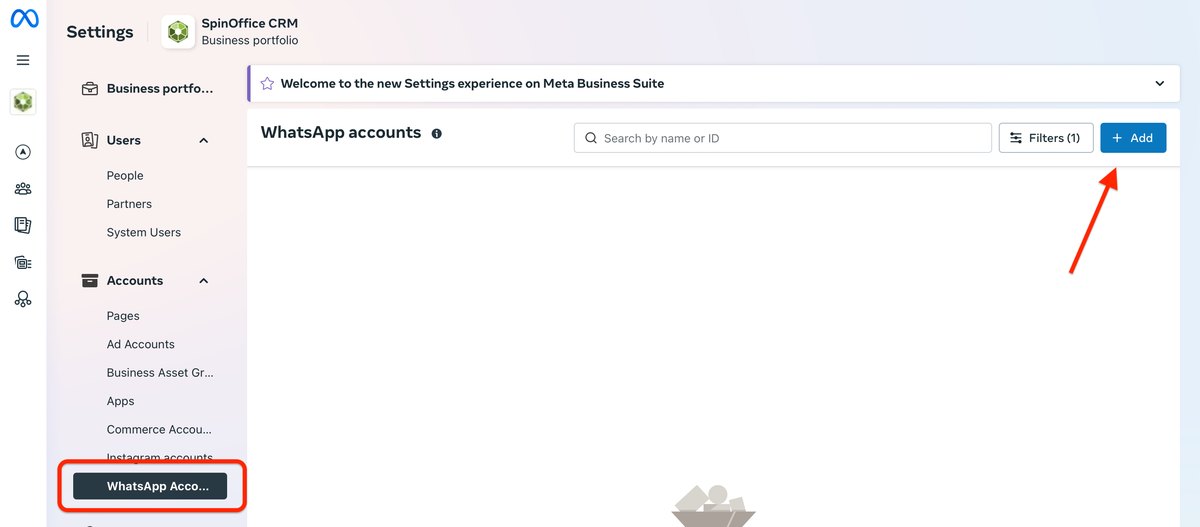
- Add your number: in your business portfolio settings, go to Accounts > WhatsApp Accounts and click Add. Verify the number via text message or a phone call.
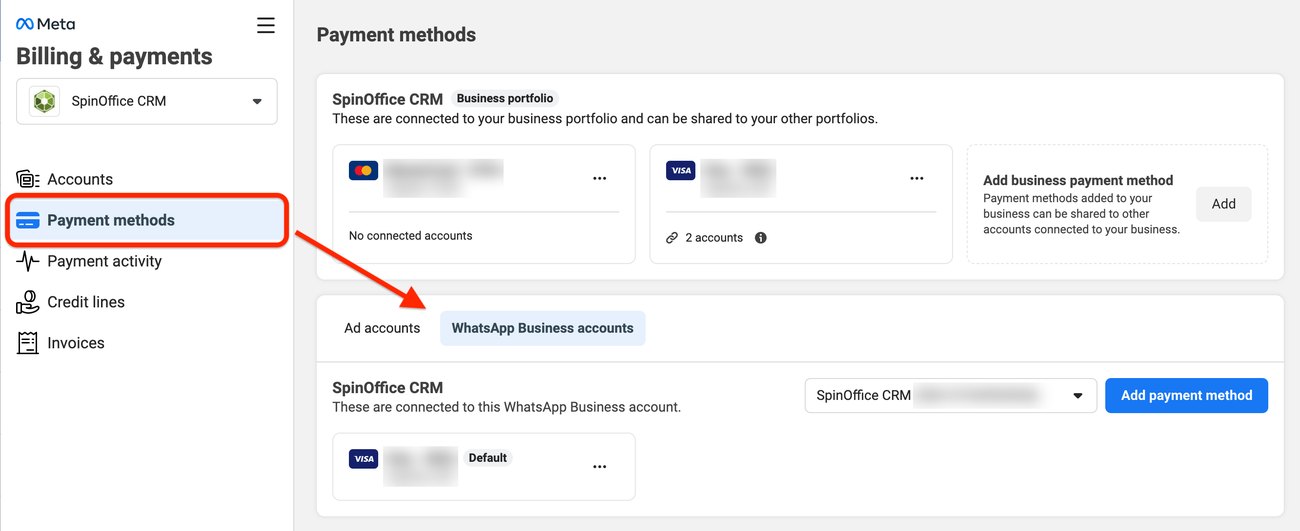
- Payment method: go to Billing & payments > Payment methods. Open the WhatsApp Business accounts tab, choose your account and add a payment method.
Meta's screens may look slightly different, for example in another language.
Please note: only continue once your business is verified and your number has been approved. Otherwise the connection won't work. SpinOffice has no influence on verification by Meta.
Part 2: connect in SpinOffice
- Go to ☰ > Administration > Integrations > WhatsApp Business and click Connect with Facebook. Allow the pop-up.
- Sign in with your Facebook account and click Continue.
- Choose your business portfolio and then your WhatsApp number. Click Continue each time.
- Give SpinOffice access to the number and the conversations.
- Has the number been approved? Click Save.
- Click Test connection to check that everything works.
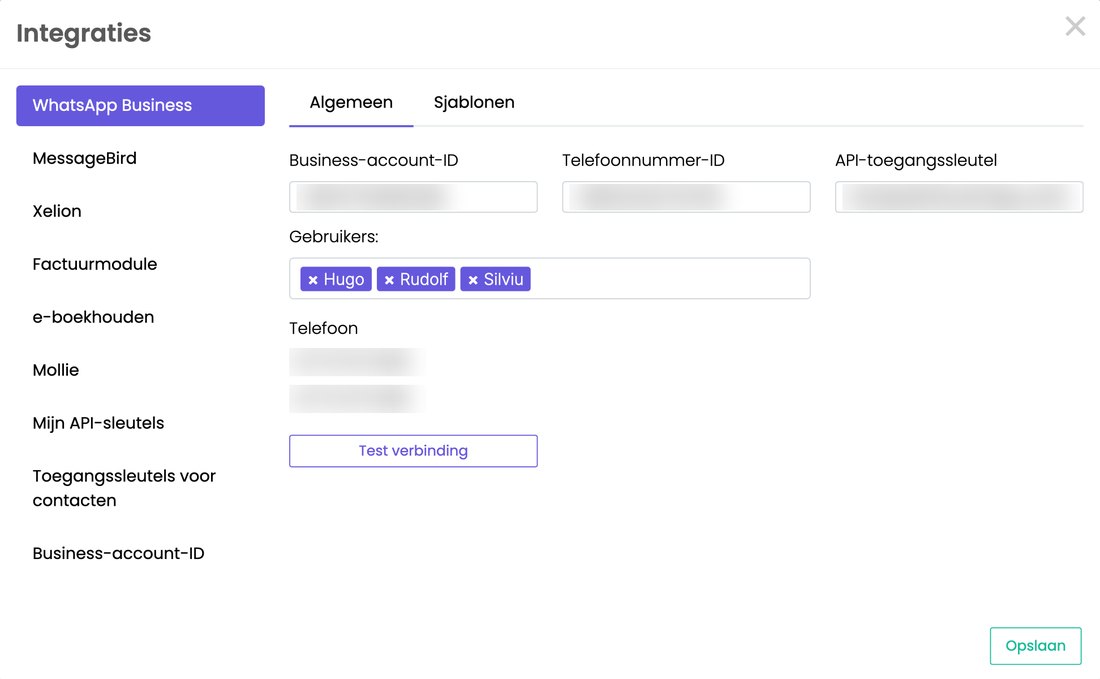
After connecting, you see the details of your WhatsApp account and your phone number.
Part 3: users and templates
- Users: under Users, choose which colleagues get the WhatsApp messages in their Inbox. Everyone you choose sees new conversations and can answer them.
- Templates: create your first template in Meta. Without a template you can't start a conversation. Read how: WhatsApp Business templates
Starting a conversation
- Open the contact.
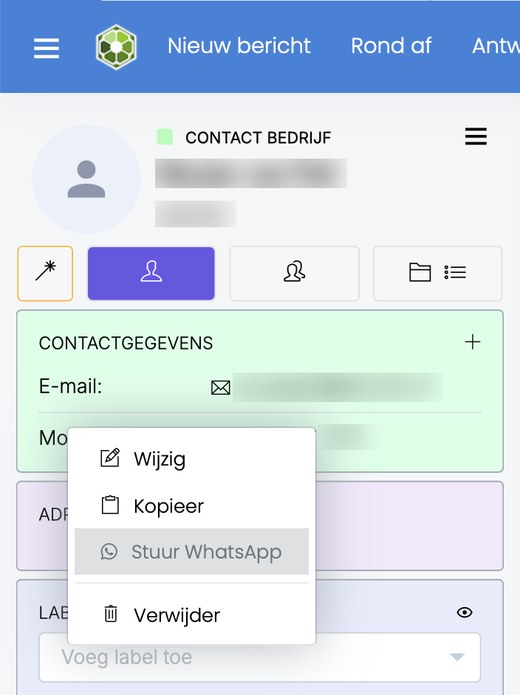
- Right-click the (mobile) phone number and choose Send WhatsApp.
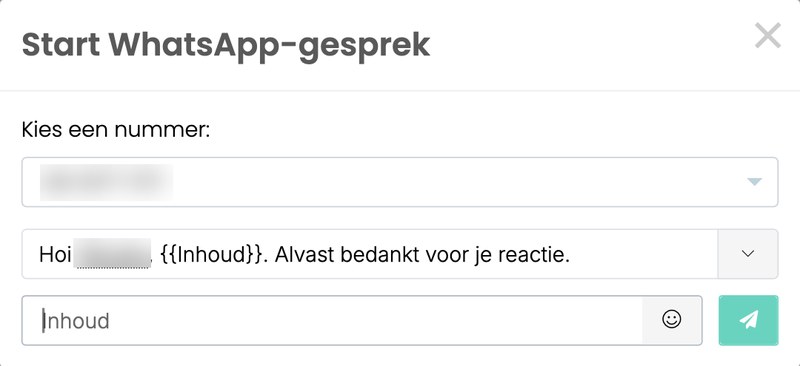
- The Start WhatsApp conversation window opens. Choose the number and the template. Merge fields such as the first name are already filled in.
- Type your message in the Content field and click the send icon.
Does your customer reply? Then the conversation is in your Inbox and you can reply freely for 24 hours.
Was this article helpful?
That’s Great!
Thank you for your feedback
Sorry! We couldn't be helpful
Thank you for your feedback
Feedback sent
We appreciate your effort and will try to fix the article