By default, everyone in SpinOffice sees everything. That makes working together easy. Want some colleagues to be able to do or see less? Then you adjust the rights per user.
Only users with the SuperAdmin right can change rights.
Changing a user's rights
- Go to ☰ > Administration > User settings.
- Choose the user at the top left.
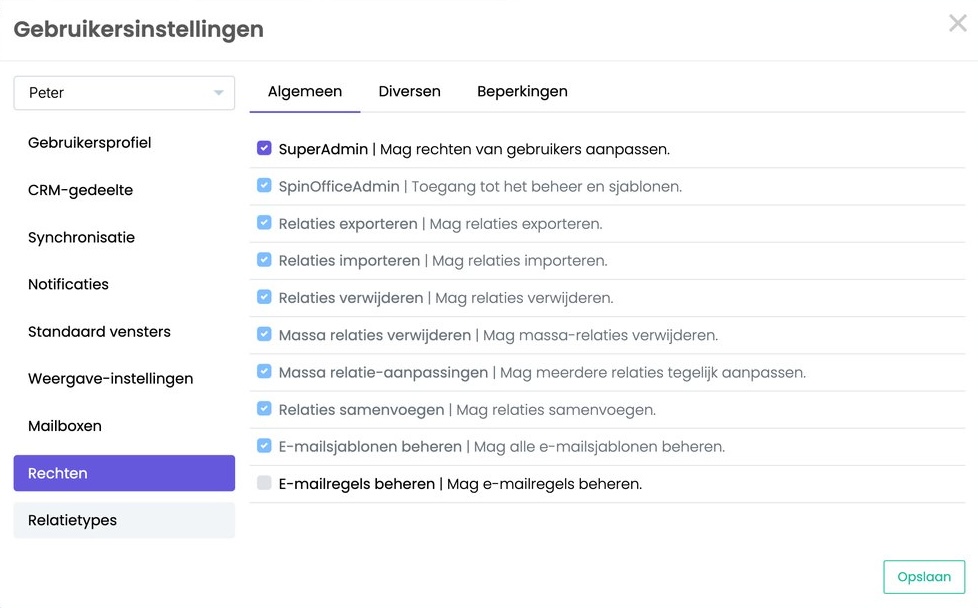
- Click Rights. You see three tabs: General, Other and Restrictions.
- Tick or untick the rights and click Save.
Tip: want to give a group of colleagues the same rights in one go? Then use a user template. Read more: User templates
General
| Right | What the user can do |
|---|---|
| SuperAdmin | Change the rights of all users. |
| SpinOfficeAdmin | Use the Administration menu and manage templates. |
| Export contacts | Export contacts. |
| Import contacts | Import contacts. |
| Delete contacts | Delete a contact. |
| Bulk delete contacts | Delete several contacts at once. |
| Bulk contact editing | Edit several contacts at once. |
| Merge contacts | Merge duplicate contacts. |
| Manage email templates | Manage all email templates, without access to the rest of Administration. |
| Manage email rules | Set up email rules for a sender. Read more: Email rules |
| Scan module | Scan documents. |
Other
| Right | What the user can do |
|---|---|
| Invoice module | Use the invoice module. |
| Edit amounts | Change amounts on invoices. |
Restrictions
Here you tick what a user is not allowed to do.
| Restriction | What it means |
|---|---|
| Domain templates only | The user can only use email templates of their own domain. |
| Web access only | The user can only work in the browser, not in the desktop version. |
| Access to own folders only | The user only sees folders they are linked to. |
| No access to user templates | The user can't view or edit the user templates. |
Which contacts does a user see?
In User settings, click Contact types and choose which contact types the user may see. This lets you shield private contacts or a single department, for example. So think carefully about your contact types when you set up your database.
Private items
Every user can mark emails, files and folders as private. Colleagues can then not open them, not even an administrator. There is no right that lets someone open other people's private items.
A colleague is leaving
For that user, open User profile > Security and enter the date under No longer employed. From that date, the colleague can no longer log in.
What happens to their data?
- Everything stays in SpinOffice: emails, tasks, appointments, folders and files. Everything remains visible in the contacts' archives.
- Their mailbox goes quiet. No new email comes in and the mailbox can no longer be opened.
What happens to the license?
- Pro and Pro+: the license becomes available. A new colleague can use it until the end date of your license.
- Enterprise: the license stops from the next month. You no longer pay for it after that.
Tip: before their last working day, go through your colleague's open tasks and link them to another colleague. Do they receive email on a shared address, such as info@? Then link that mailbox to someone else first, otherwise that email stops coming in too.
Read also: Sharing with colleagues and Adding a user
Was this article helpful?
That’s Great!
Thank you for your feedback
Sorry! We couldn't be helpful
Thank you for your feedback
Feedback sent
We appreciate your effort and will try to fix the article