Switching from another program, or do you keep your customers in Excel? Then import them into SpinOffice in one go. This works in the browser and in the desktop version.
Prefer to watch? The video shows how it works (in Dutch).
Which source do you choose?
| Source | What is imported |
|---|---|
| Excel or CSV | All columns you map to fields in SpinOffice. |
| Office 365 | Your contacts with addresses and notes. This is a one-time import, not a synchronization. |
| Apple Contacts | All your contacts in one go. Only in the desktop version on a Mac. |
Tip: import your contacts before you connect your email account. Your existing emails then go straight into the right archives.
Step 1: prepare your file
- Use an .xlsx, .xls or .csv file. The easiest way to start is with our sample file (Excel).
- Put the column names in the first row, for example Company name, First name, Last name, Email, Phone, Address, Zip code, City and Country.
- For Country, use the two-letter country code, such as NL, BE or DE.
- Don't use formulas or formatting. If necessary, paste your data as values into a new, empty file.
Step 2: upload your file
- Choose ☰ > Import > Contacts. Or, on the Home screen, click ☰ > Import contacts in the Recent contacts block.
- Choose Excel.
- Drag your file into the box, or click it and choose your file. Click Continue.
Your earlier imports are listed below the box. With Open you see the result again, and with Change settings you reuse that import's mappings and options.
Step 3: map the columns
At the top of each column from your file, you choose the SpinOffice field that column should go into. Below that you see the first rows of your file, so you can check right away whether it's correct.
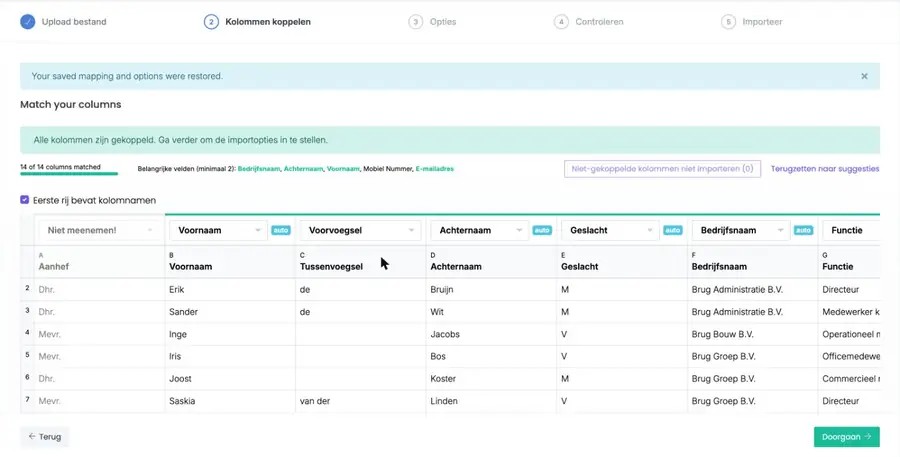
- auto: SpinOffice recognized the column itself. Do check it.
- Don't import: this column isn't imported.
- At the top left you see how many columns are mapped. When they're all mapped, the bar turns green.
- Columns you don't need? Click Don't import unmapped columns.
- Lost track? With Reset to suggestions you start again with SpinOffice's suggestions.
- No column names in the first row? Then untick First row contains column names.
Click Continue.
Step 4: choose the options
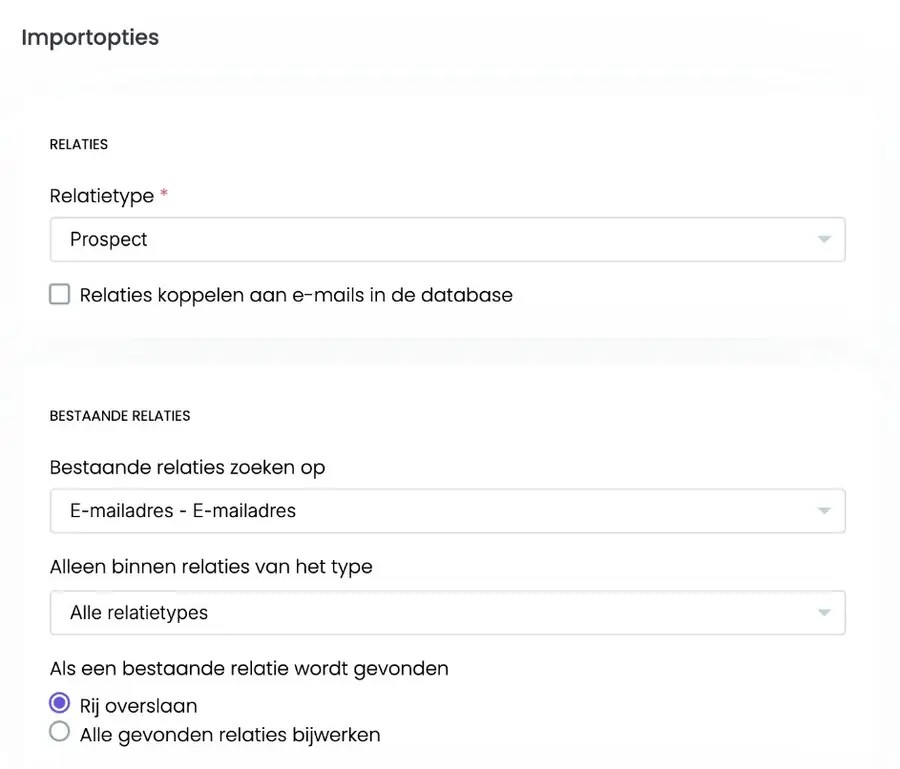
- Contact type: required. For example Customer or Prospect. All contacts from this file get this type.
- Link contacts to emails in the database: tick this. Existing emails then go straight into the contact's archive.
- Search existing contacts by: the field SpinOffice uses to recognize whether a contact already exists, usually the email address. Don't want to check? Choose Don't search for existing contacts.
- Only within contacts of type: search only among contacts of one type, or leave it at All contact types.
- If an existing contact is found: choose Skip row, or Update all found contacts with the data from your file.
- Ignore empty cells when updating: tick this if an empty cell in your file must not erase existing data.
Click Continue.
Step 5: review
SpinOffice shows what's going to happen, before anything changes. You also see any problems in your file here.
- Imported: new contacts that will be added.
- Contact already exists: contacts SpinOffice already knows. They're skipped or updated, depending on your choice in step 4.
- Previously imported: rows you already brought in with an earlier import.
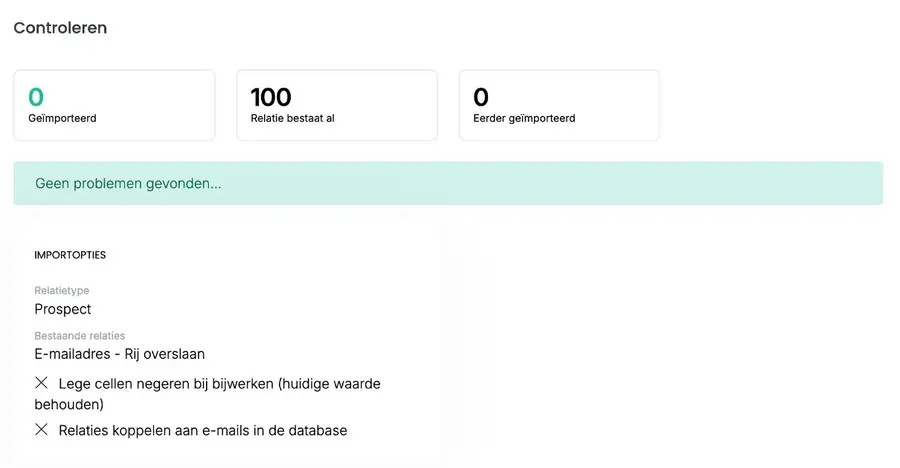
Not right? Go back to the previous step with Back. All good? Click Start.
Step 6: the result
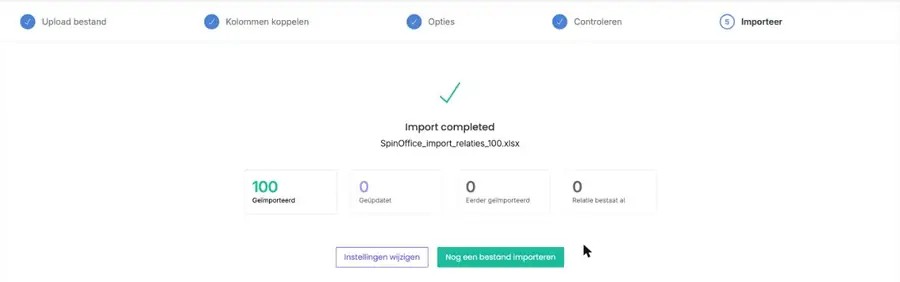
You see how many contacts were added (Imported), updated (Updated) and skipped (Previously imported and Contact already exists). With Import another file you start on the next file right away.
Importing from Office 365 or Apple Contacts
Office 365: choose Office 365 in step 2 and sign in once with your Microsoft account. Later changes in Office 365 don't come into SpinOffice automatically. Want to keep your contacts in sync permanently? Read Syncing contacts with Microsoft 365
Apple Contacts: read Importing Mac Contacts
Something went wrong?
- Duplicate contacts? Merging duplicate contacts
- Chose the wrong contact type? Filter on that type and change it with Bulk actions: editing many contacts at once.
Was this article helpful?
That’s Great!
Thank you for your feedback
Sorry! We couldn't be helpful
Thank you for your feedback
Feedback sent
We appreciate your effort and will try to fix the article