Folders are included in all editions of SpinOffice.
With a folder, you bundle everything that belongs to one matter: emails, files, tasks, appointments and notes. For example a quote, a year-end closing, a project or a complaint.
Why folders?
A contact's archive shows everything about one contact. A folder goes across contacts. You link several contacts to it, for example a client, the customer and the participants in a project. That way, all information about that matter is in one place, and all colleagues working on it see the same thing.
Do you also record time on the tasks in the folder? Then you see exactly how much time a matter has taken.
Agree on it together
Folders work best when your team makes clear agreements about them. For example: which matters get a folder, which folder types you use and who links emails to the folder. That takes a bit more discipline at first. In return, everyone can find everything, even when a colleague is away.
Tip: use default folders (see below), so every new customer automatically gets the same folders.
Creating a folder
You create a folder in one of these ways:
- Via ☰ > New > Folder.
- In a contact's archive: click the + in the Folders / Tasks block and choose a new folder. The contact is then already linked.
- Or via ☰ on the contact card and then New folder.
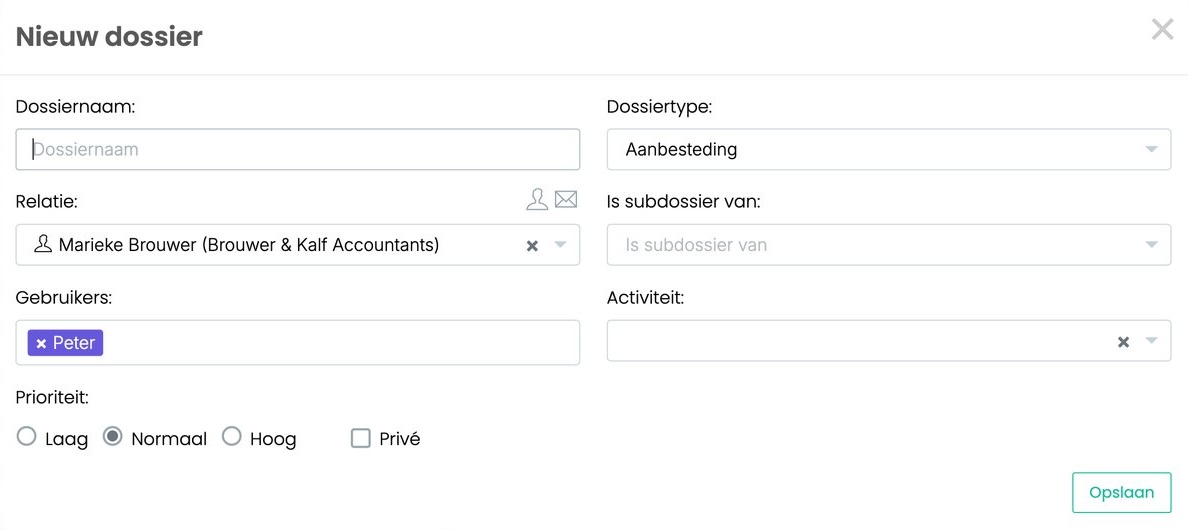
Fill in:
- Folder name: required. Choose a name you'll easily recognize later, for example 'Year-end closing 2026'.
- Folder type: for example Tender or Project. You can filter on the type later.
- Contact: the contact the folder belongs to. You can link more contacts to it later. Use the icons above it to go to the contact or write an email to the contact. If you leave this field empty, the folder belongs to you.
- Is sub folder of: only fill this in if this folder falls under another folder.
- Users: the colleagues working on the folder.
- Activity: the type of work, for example Sales. Just like with tasks.
- Priority: Low, Medium or High.
- Private: only you and the colleagues you add under Users can open a private folder. Other colleagues, including administrators, see the folder in the list, but shielded: they can't open it. Private items also don't end up in exports or with AI.
Click Save. The folder now appears in the contact's Folders / Tasks block.
Subfolders
Want to split up a large folder? Create subfolders. Under Is sub folder of, choose the folder it falls under. Subfolders are indented below the parent folder.
Default folders
With a default folder, a folder is created automatically for new contacts. You set a rule: when you create a contact of a certain contact type, it automatically gets a folder with a fixed name and a fixed type.
Example: when you create a contact with the contact type Customer, it automatically gets the folders 'Administration 2027' and 'Tax documents', both of the type Financial.

- Choose ☰ > New > Default folder. You see the rules that already exist.
- Click the + at the top right to add a rule.
- Enter the description (the name of the folder) and choose the contact type and the folder type.
- Save the rule.
Use the pencil to edit a rule and the trash can to delete it.
That way every customer folder starts the same, without anyone having to remember it.
Managing folder types
You set up the folder types via ☰ > Administration > Folder types. Create types that fit your work, so everyone organizes folders the same way.
Finishing a folder
Is the matter done? Then finish the folder. Click ☰ next to the folder and choose Finish, or do it in the folder via Folder properties.
A finished folder turns gray and moves to the bottom for the contact. You can always find it in the folder list, with the filter for finished folders.
Read also: Working in a folder and The folder list
Was this article helpful?
That’s Great!
Thank you for your feedback
Sorry! We couldn't be helpful
Thank you for your feedback
Feedback sent
We appreciate your effort and will try to fix the article