The folder list shows all folders in SpinOffice together: yours and your colleagues'.
Opening the folder list
- In the browser: click the folder icon in the left bar.
- In the desktop version: choose ☰ > Go to > Folder list.
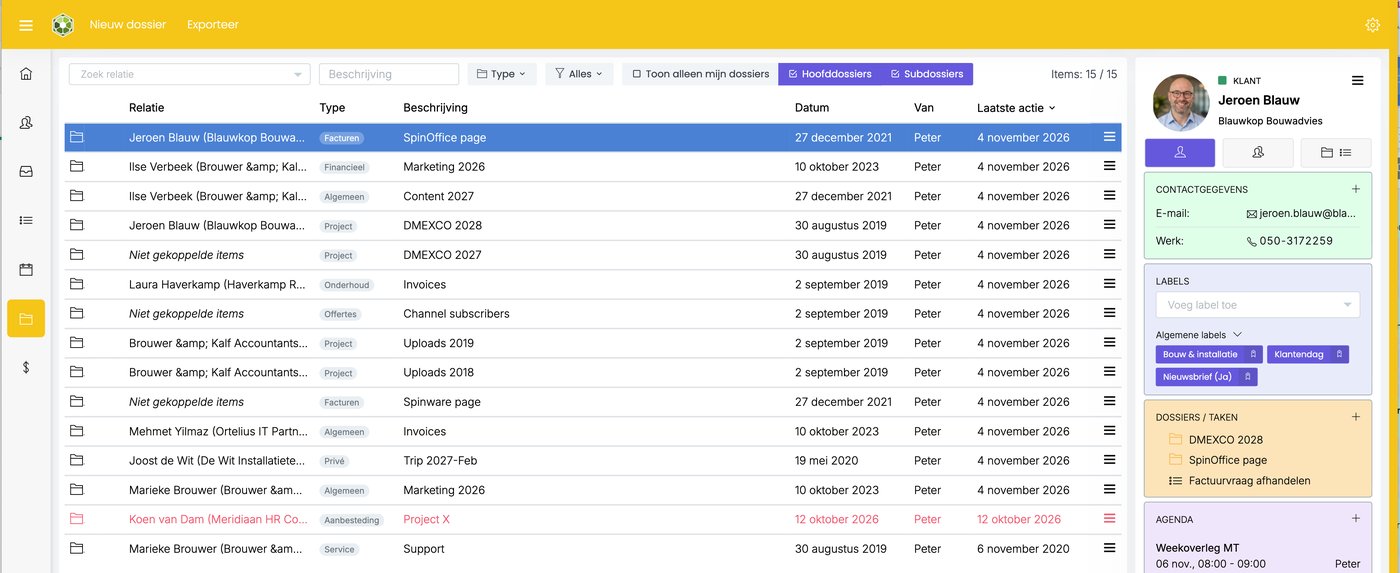
For each folder you see the contact, the type, the description, the date, who created the folder (From) and the last action. Click a folder to see the contact's details on the right.
A red row is a folder with priority High.
Does it say Unlinked item under Contact? Then the folder isn't linked to a contact.
Searching and filtering
- Search contact: show only the folders of one contact.
- Description: search by the folder's name.
- Type: show only folders of a certain type, for example Quote.
- Open / Finished: choose whether you want to see all, open or finished folders.
- Show only my folders: the folders you created, and the folders a colleague has linked you to.
- Parent folders and Subfolders: turn on or off which ones you want to see.
More options
- Use New folder at the top left to create a folder.
- Use ☰ after a folder to open the Folder properties, link contacts (Link to Contact) or colleagues, write a note or finish the folder.
Colleagues' private folders appear shielded in the list. You can only open them if you're linked to them.
Was this article helpful?
That’s Great!
Thank you for your feedback
Sorry! We couldn't be helpful
Thank you for your feedback
Feedback sent
We appreciate your effort and will try to fix the article