A folder shows everything that belongs to a matter together. Here's how to add items and work with colleagues.
Opening a folder
Click the folder in a contact's Folders / Tasks block, or in the folder list.
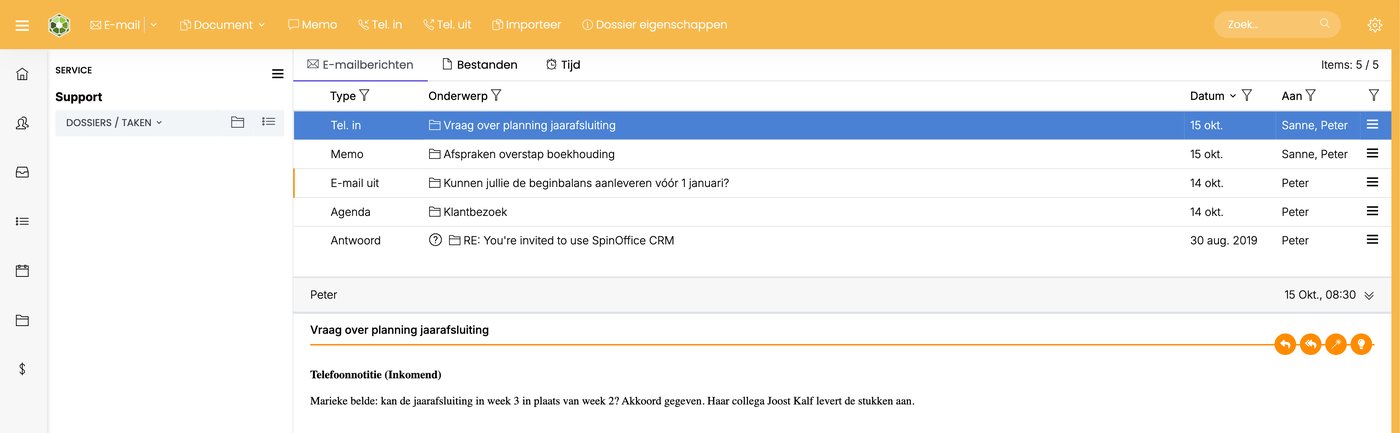
- On the left are the folder's type and name. Below that, use the arrow to switch between Folders / Tasks (subfolders and tasks) and the linked contacts.
- At the top you create something new in the folder right away: Email, Document, Memo, Call in, Call out or Import. Use Folder properties to change the name, type and other details.
- In the middle are the Emails, Files and Time tabs, just like in a contact's archive.
You recognize items that are in a folder everywhere by the folder icon in front of the subject.
Adding items
You can add emails, files, tasks, appointments, call notes and memos to a folder.
Via the menu
- Click ☰ next to the item and choose Link to Folder. In your Inbox, it's under Links.
- Look up the folder and double-click it. It now appears among the linked folders.
- Click Save.
This also lets you link an item to a folder of another contact, or to several folders at once.
Dragging
Drag an item in your Inbox or in the archive to the folder in the Folders / Tasks block.
When creating a task
In the Task window, under Folder, choose the folder the task belongs to.
Linking colleagues
Add colleagues under Users in the folder. You do this when creating the folder, or later via Folder properties.
Your colleague doesn't get a notification about this. So let them know.
Linking contacts
A folder can belong to several contacts, for example a company and two contact persons.
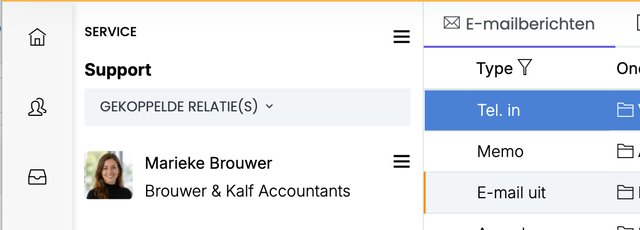
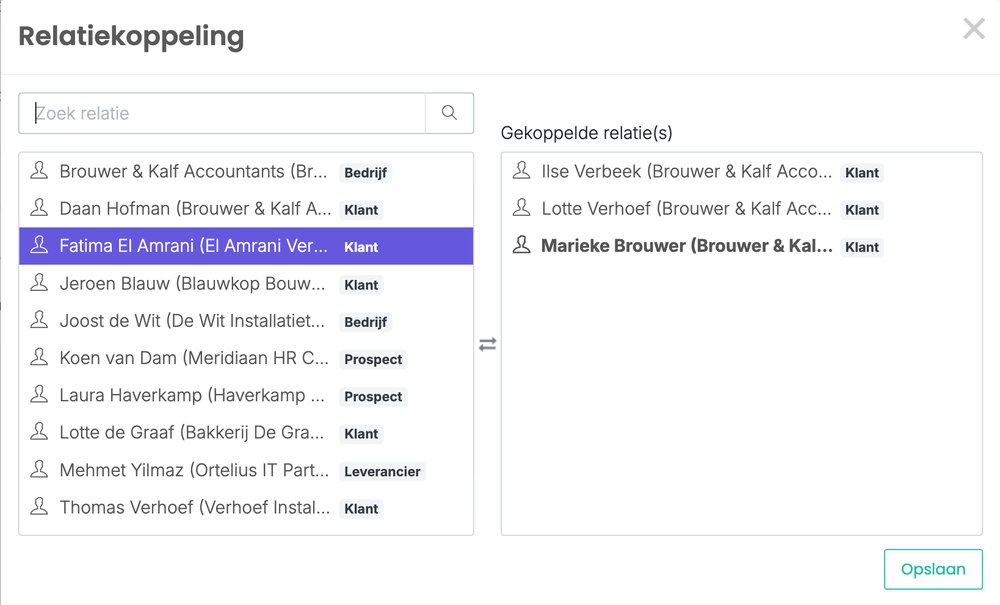
- In the folder, click ☰ next to the folder name, or in the folder list click ☰ after the folder, and choose Link to Contact.
- Look up the contact and double-click it, or select it and click the arrows. It now appears among the linked contacts.
- Click Save.
Time in a folder
The Time tab shows the time recorded on tasks in this folder. You can also record time on the folder itself. Read more: Recording time on a task
Was this article helpful?
That’s Great!
Thank you for your feedback
Sorry! We couldn't be helpful
Thank you for your feedback
Feedback sent
We appreciate your effort and will try to fix the article