In Sender settings you choose which email addresses you can send from and which name recipients see. For example, you can send a group mailing from info@ with your company name as the sender, instead of your own name.
Where to find Sender settings
There are two ways:
- From your Inbox: click the gear icon at the top right. In Inbox preferences, under Actions, choose Sender settings.
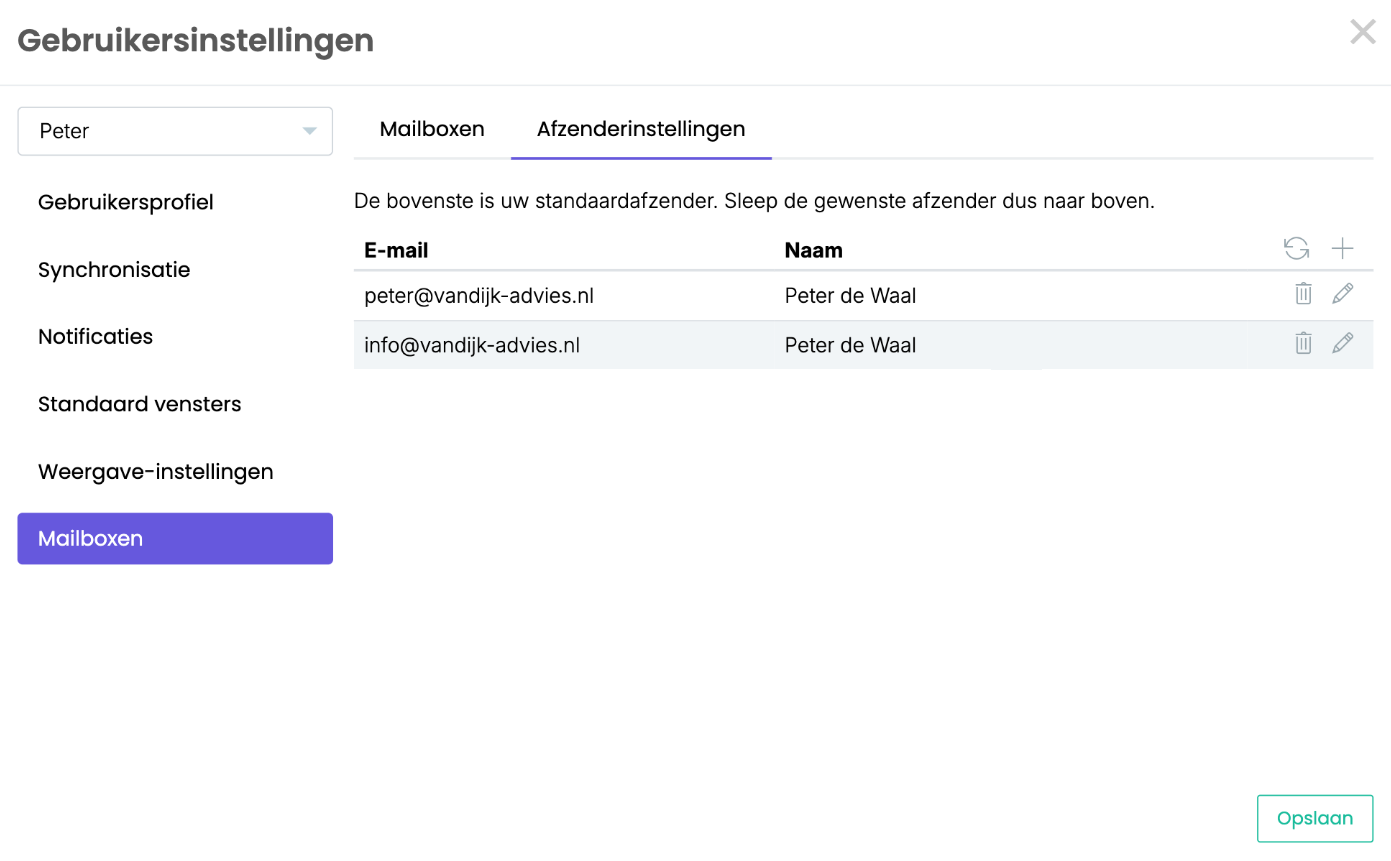
- Through Admin (administrators): open the menu at the top left and choose Admin › Email › Sender settings. You can also choose Admin › User settings and go to Mailboxes › Sender settings tab. Select the user at the top; this way you can also set it up for a colleague.
You see a list of email addresses with the name that belongs to each address.
Change the sender name
- Click the pencil icon next to the email address. The address and name become input fields.
- Change the name. For example: for info@vandijk-advies.nl, replace Peter de Waal with Van Dijk Advies.
- Click the floppy disk icon that replaced the pencil, and then click Save.
From now on, recipients see this name when you send from this address.
Add a sender
- Click the plus icon (+) at the top right of the list.
- Enter the email address and the name.
- Click the floppy disk icon and then click Save.
You can now choose this address as the sender when you send an email or a group mailing.
Choose your default sender
The address at the top of the list is your default sender. To send from a different address by default, drag that address to the top and click Save.
Remove a sender
Click the trash icon next to the address and then click Save. The round arrow above the list reloads the list.
Sender in a group mailing
In a group mailing you choose the sender at the top. SpinOffice uses the address and the name from Sender settings.
Good to know
- Sender settings are per user. Do several colleagues send from info@? Then each of them sets the name, or an administrator does it through User settings.
- Only use addresses of your own organisation. SpinOffice does not check whether you may use an address. If the domain is not set up correctly, your email may end up in spam or be rejected. See Set up SPF and DKIM for your domain and Email is not delivered or bounces.
- Replies arrive at the sender address. Want to see those replies in SpinOffice? Then connect that mailbox as well. See Add an email account.
Was this article helpful?
That’s Great!
Thank you for your feedback
Sorry! We couldn't be helpful
Thank you for your feedback
Feedback sent
We appreciate your effort and will try to fix the article