In Action types, you decide per type of item which template SpinOffice uses by default. For example: every new email gets the template with your house style, and a reply gets a simpler template. This applies to everyone in your organization.
Only users with the SpinOfficeAdmin right can change Action types.
How to set it up
- Go to ☰ > Administration > Action types.
- Click the pencil next to the type you want to change.
- Choose the template and save.
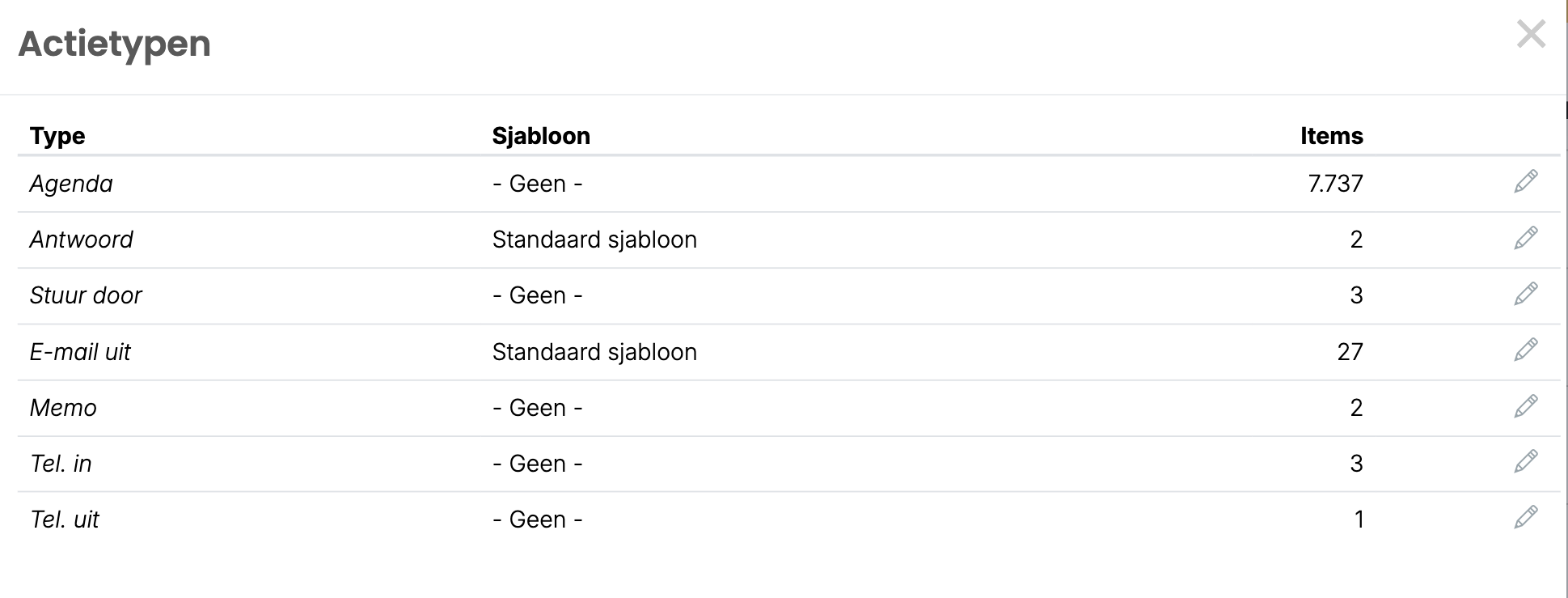
The action types
| Type | When |
|---|---|
| Email out | You create a new email. |
| Reply | You reply to an email. |
| Forward | You forward an email. |
| Memo | You create a memo. |
| Inbound call and Outbound call | You record an incoming or outgoing phone call. |
| Agenda | You create an appointment. |
Does it say - None -? Then that item starts without a template. Under Items you see how many items of that type there are.
Tips
- For Reply and Forward, use a template with a Content block. That way you have room to type straight away. Read Adding the Content field to your email template
- A user can choose a different default template for themselves. Read Using an email template
Read also: Creating and editing email templates
Was this article helpful?
That’s Great!
Thank you for your feedback
Sorry! We couldn't be helpful
Thank you for your feedback
Feedback sent
We appreciate your effort and will try to fix the article