SpinOffice works on the web, on your computer (Windows and Mac) and in the app. The layout and features are largely the same everywhere. These are the screens you use most.
The Home dashboard
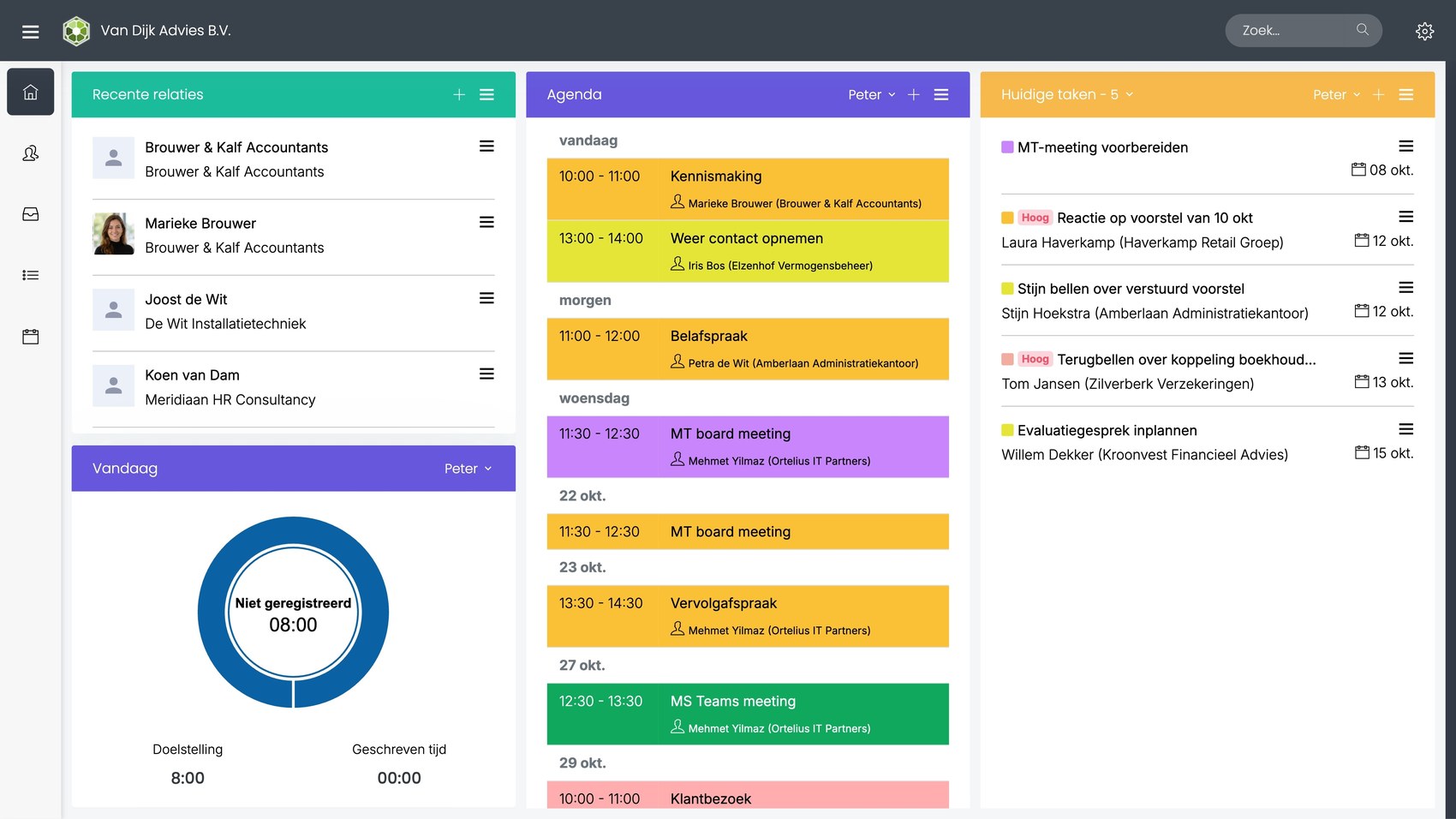
After logging in, you land on the Home dashboard: an overview of what's going on and what you need to do today. You see your recent contacts, your calendar, your tasks and the time you've recorded. Use the gear icon at the top right to add more widgets.
The Contact List and the archive
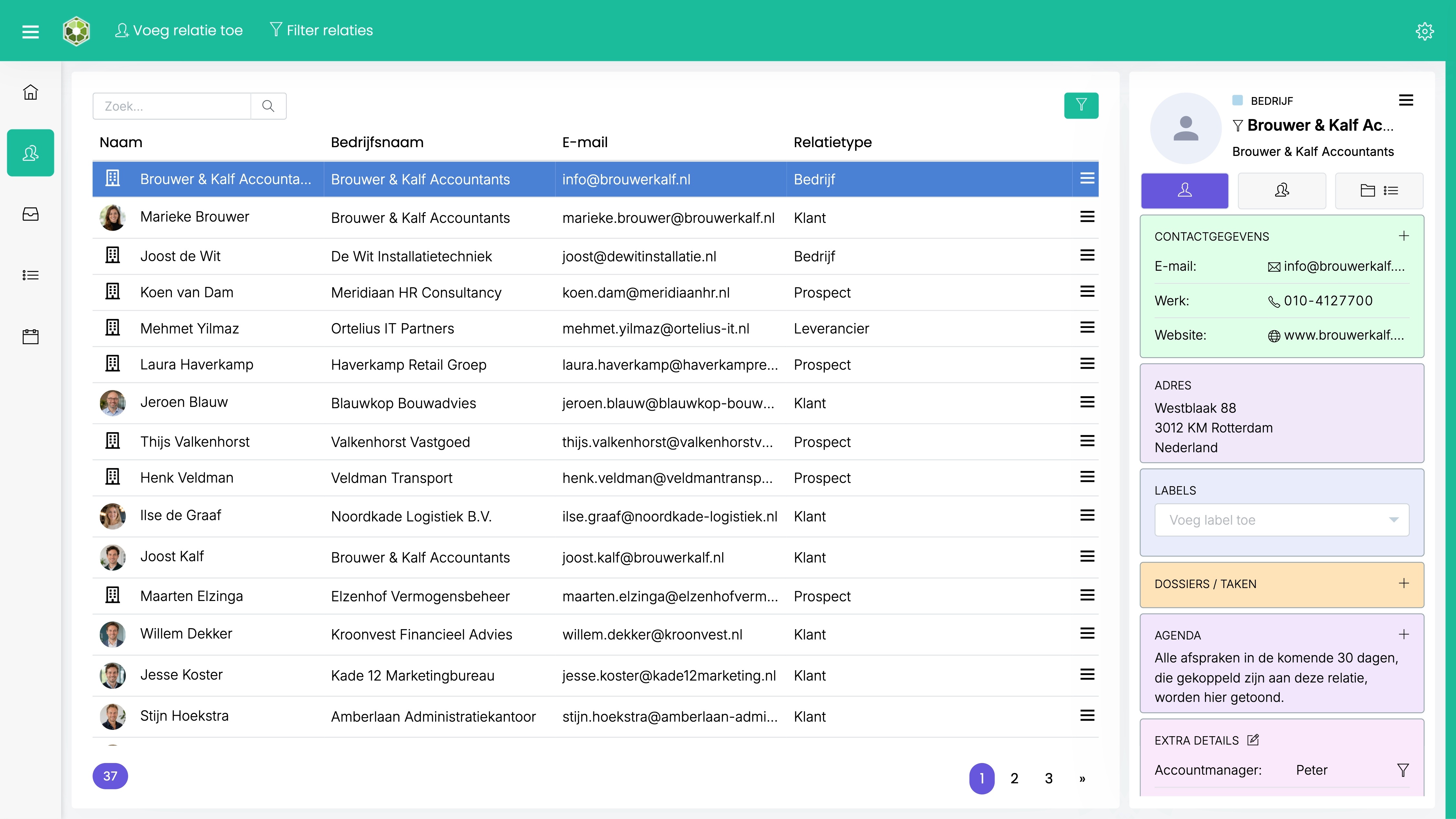
Every contact has its own contact card and its own archive. The Contact List gives you an overview of all your contacts. You can search them and filter them on all kinds of fields.
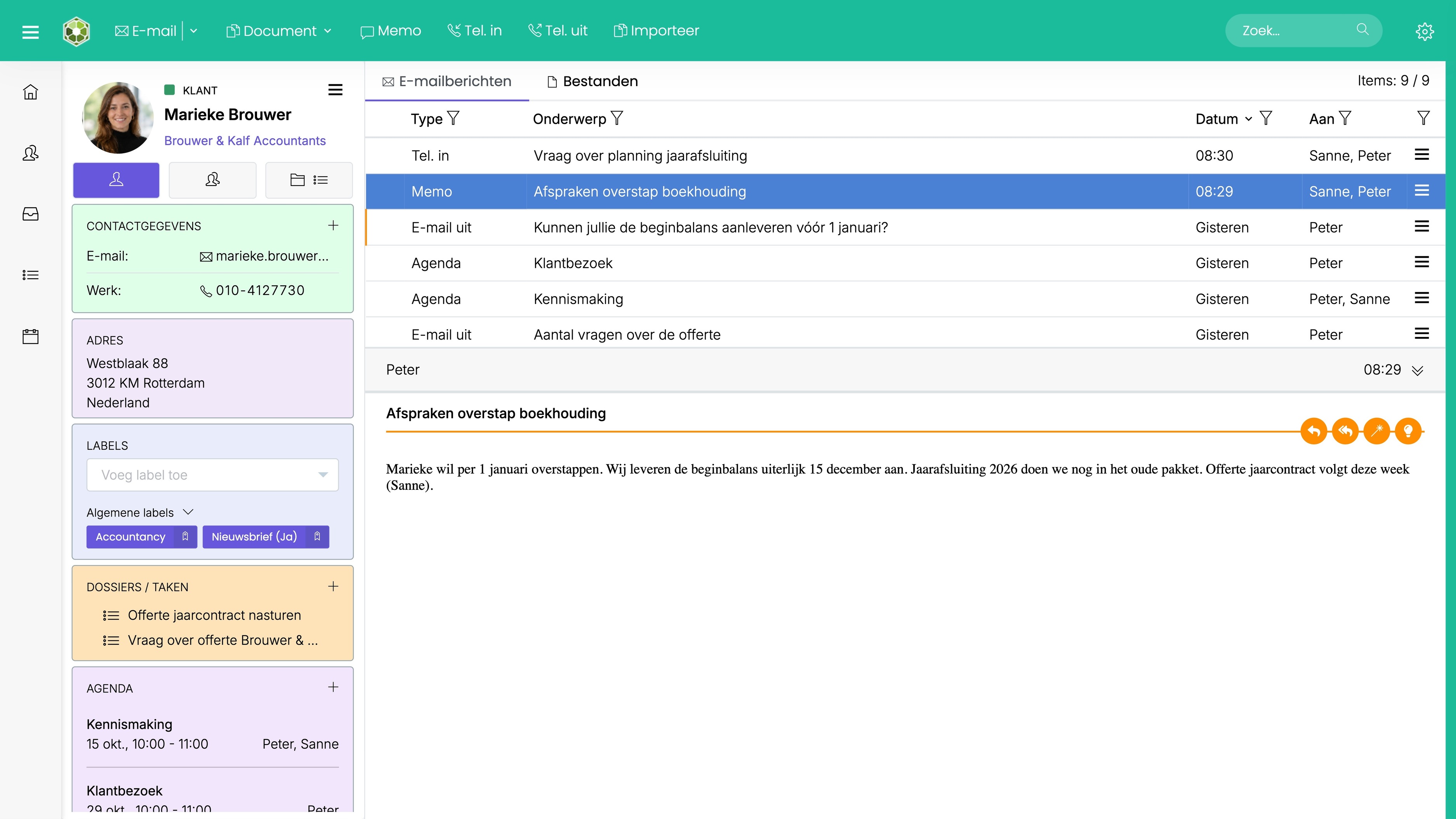
Click the name of a contact or company anywhere in SpinOffice to open its archive. On the left you see the contact details, on the right all communication you and your colleagues have had with this contact: emails, tasks, notes, appointments, attachments and files.
Read more: The Contact List · A contact's archive
The screen tabs
At the top there are tabs for the main screens. New emails, call notes, memos and the like open in a new tab. When you click Send or close, the tab closes automatically and you carry on where you were.
You decide which tabs open when you log in. Go to Administration > User settings > Default screens, tick the screens you want to open, drag them into the order you want and click Save.
In the Pro edition, you can also drag tabs outside the window, for example to open your Inbox on a second screen. To do this, tick Allow dragging tabs out of the application in the same screen.
The header bar
Below the tabs is a colored header bar with the most used buttons for that screen. The color tells you right away where you are:
- Home dashboard: gray
- Contact List and contact archive: green
- Inbox: blue
- Kanban board: orange
- Calendar: purple
The main menu and screen preferences
- Main menu (☰): on the left of the header bar. This is where you find all options, such as creating a new item, going to a screen, importing and exporting, Administration and Support.
- Screen preferences: the gear icon on the right of the header bar. The settings differ per screen.
Read more: The Administration menu
Was this article helpful?
That’s Great!
Thank you for your feedback
Sorry! We couldn't be helpful
Thank you for your feedback
Feedback sent
We appreciate your effort and will try to fix the article