You add a new colleague in three steps: you invite the user, pay for the license and set up the rights.
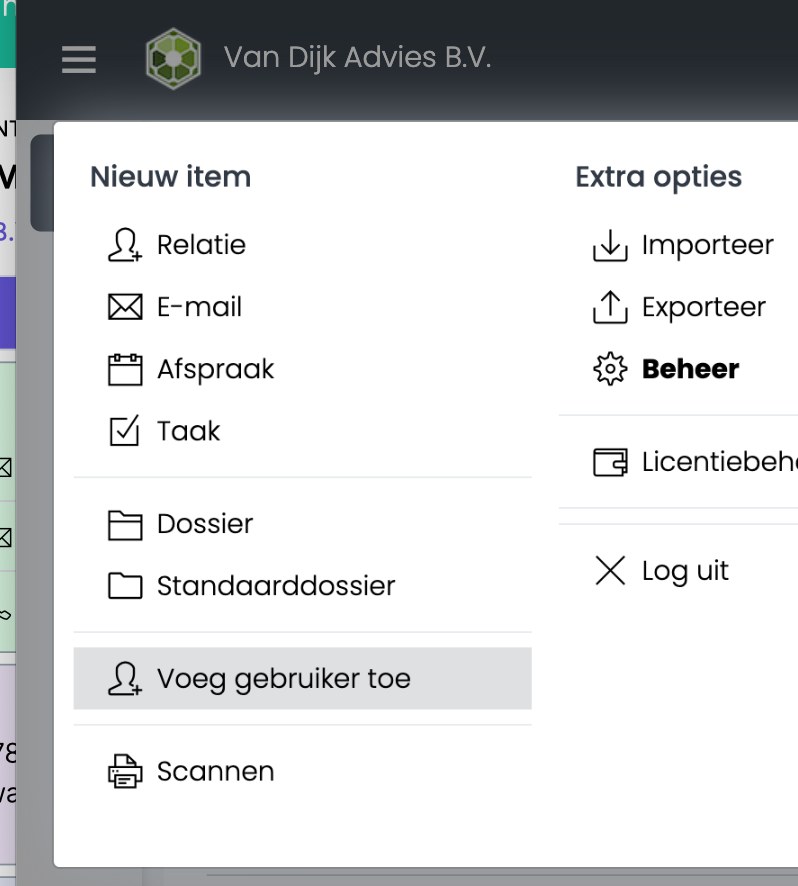
Step 1: invite the user
- Click ☰ and choose Add user.
- Enter your colleague's name and email address and click Next.
Your colleague receives an email with an invitation to sign in.
Don't see Add user? Then you don't have the right to invite colleagues. Ask an administrator.
Step 2: pay for the license
- Click ☰ and choose License dashboard. You end up in the license dashboard.
- Sign in with your SpinOffice details. You see all users and their licenses.
- Click Buy next to the new user.
- Check your order and click Next.
- Click Buy and pay.
The license is valid for one year. You receive the invoice by email.
Step 3: set up the rights
A new user gets the default rights. They don't get administrator rights (SuperAdmin, UserAdmin and SpinOfficeAdmin); you turn those on yourself if needed. Want to change the rights? Read Managing users and rights
Was this article helpful?
That’s Great!
Thank you for your feedback
Sorry! We couldn't be helpful
Thank you for your feedback
Feedback sent
We appreciate your effort and will try to fix the article