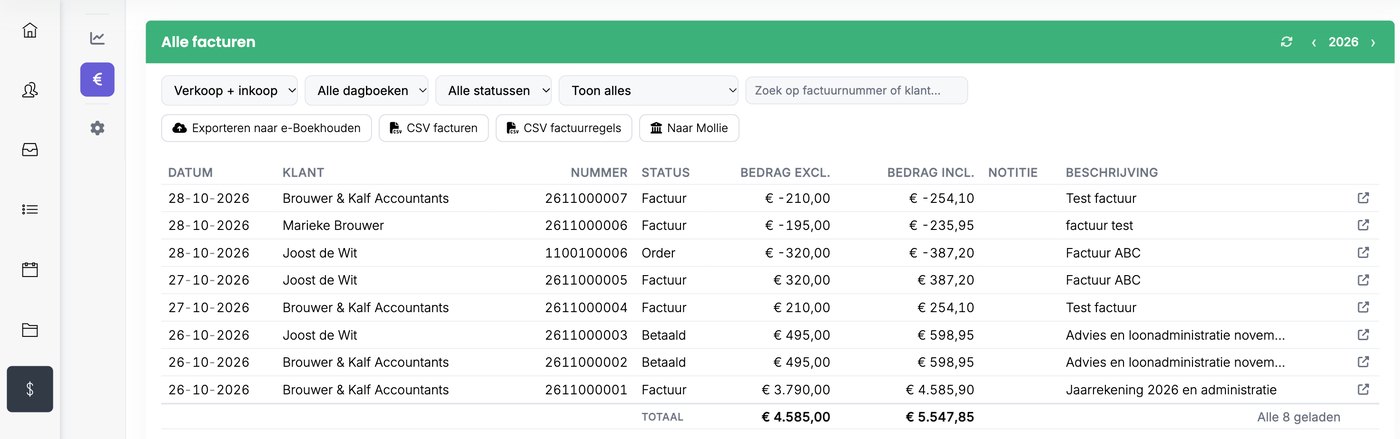
In the invoices overview, you see all your proposals, orders and invoices together. You see what's open, what's been paid and what you've invoiced per year.
Opening the invoices overview
Click the $ icon in the left bar and then the € icon in the narrow bar. In the desktop version, choose ☰ > Go to > Invoices overview.
Filtering and searching
- Year: at the top right, use the arrows to browse to another year.
- Sales + purchases and All ledgers: choose which invoices you see.
- All statuses: show, for example, only proposals, only invoices that are still open or only paid invoices.
- Search: by invoice number or customer.
At the bottom you see the total of what's in the list, excluding and including VAT.
Opening an invoice
Click the arrow on the right of the line. Or right-click the invoice for more options: Open, Print, Delete, Highlight and Credit invoice.
Creating a credit invoice
Is an invoice wrong? You can no longer change an invoice. Create a credit invoice instead.
- Right-click the invoice and choose Credit invoice.

- Click Yes. The credit invoice now appears in the list as an Order, with negative amounts.
- Open the order and click Convert to Invoice. The credit invoice now gets an invoice number.
- Click Email to send the credit invoice to your customer.
Please note: until you've converted the credit invoice, it doesn't count and isn't sent to e-Boekhouden either.
Then create a new, correct invoice. Read how: Creating an invoice
Exporting
- Export to e-Boekhouden: sends all new invoices to your accounts. This works once you've set up the integration. Read more: Connecting to e-Boekhouden
- CSV invoices and CSV invoice lines: download the invoices or all lines as a file for Excel or your bookkeeper.
Your revenue at a glance
Click the chart icon in the narrow bar. You then see:
- your revenue per month this year, compared with previous years;
- the difference with last year, and whether you've already passed last year's total;
- your revenue per general ledger account, under Per sales account.
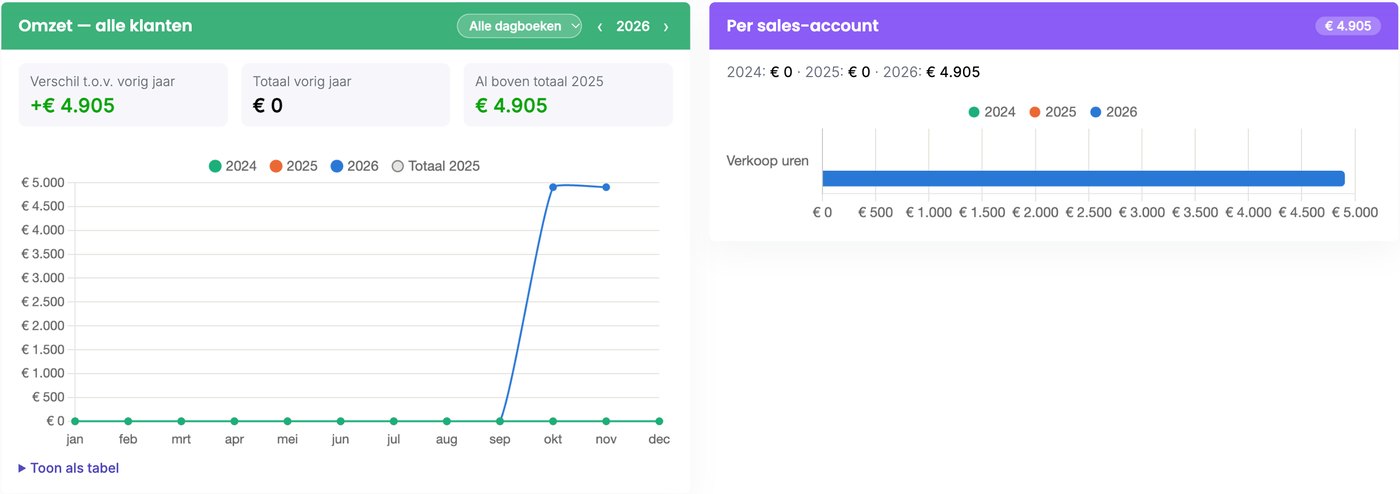
Choose a ledger at the top right or browse to another year. With Show as table, you see the amounts in a table.
Per contact
You see one contact's invoices and revenue in that contact's archive, on the Revenue tab.
Was this article helpful?
That’s Great!
Thank you for your feedback
Sorry! We couldn't be helpful
Thank you for your feedback
Feedback sent
We appreciate your effort and will try to fix the article