In the desktop version of SpinOffice, you edit Word, Excel and PowerPoint files directly from SpinOffice. Once saved, the new version is back in SpinOffice straight away. Earlier versions are kept, so you can always go back.
Please note: this only works in the desktop version of SpinOffice, on Windows and Mac.
Editing a file
- Double-click the file in SpinOffice, for example on the Files tab in a contact's archive.
- The file opens in Word, Excel or PowerPoint on your computer. There's a number after the file name, for example 'AI planning 2026 (276359)'. That number tells SpinOffice which file it belongs to.
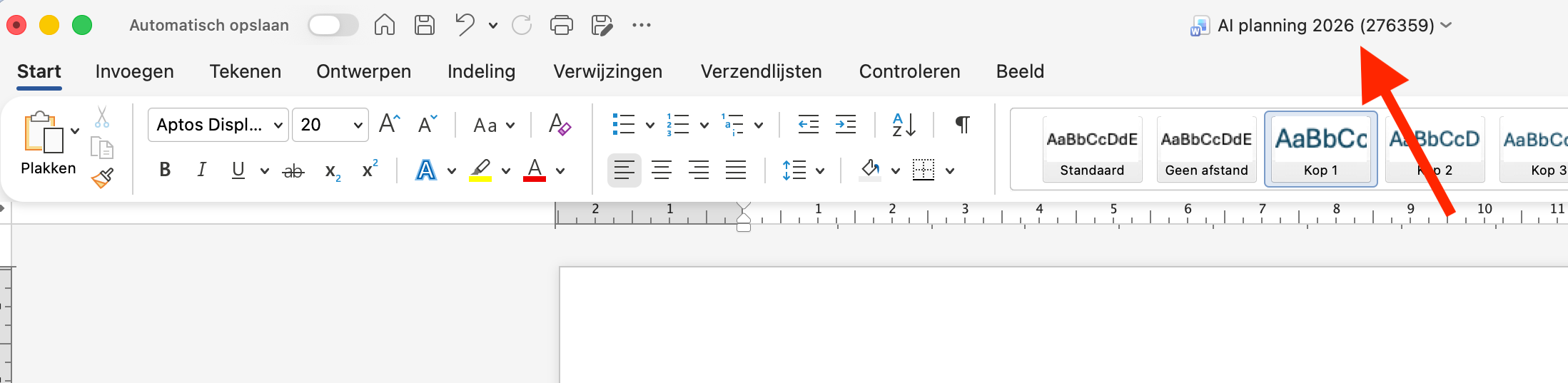
- Edit the file and click Save.
The file automatically goes back to SpinOffice, as the latest version.
Good to know
- Use Save, not Save As. With Save As, you create a new file on your computer, and that doesn't come back into SpinOffice.
- Don't change the file name and don't remove the number. Otherwise SpinOffice no longer knows where the file belongs.
- Save your file before you close SpinOffice. If you close SpinOffice while Word is still open with unsaved changes, you don't get a warning. You can then find the file in SpinOffice's fm folder:
- Windows:
C:\SpinOffice\fm - Mac: in the Finder, open the folder Library > Applications > SpinOffice > fm.
- Windows:
Restoring a previous version
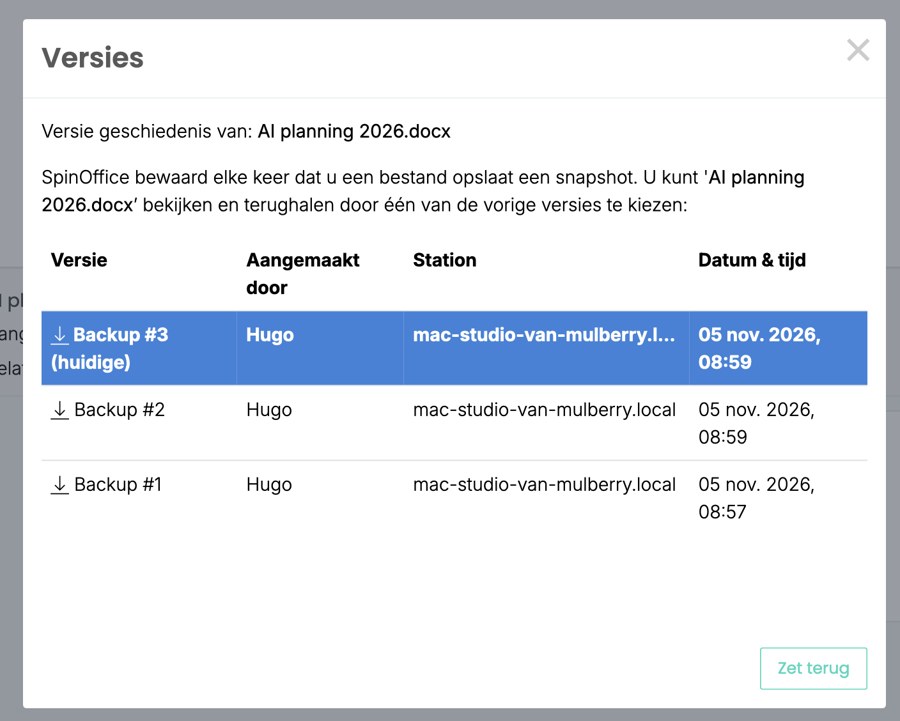
Each time you save a file, SpinOffice keeps a version.
- Click ☰ next to the file and choose Versions....
- You see all versions, with who made them and when.
- Choose the version you want back and click the restore button. That version then becomes the current one. The other versions are kept, so you can always go back again. Want to look at a version first? Click the arrow to download it.
Read also: Adding and finding files
Was this article helpful?
That’s Great!
Thank you for your feedback
Sorry! We couldn't be helpful
Thank you for your feedback
Feedback sent
We appreciate your effort and will try to fix the article