The Inbox mostly works like your email program. The difference: SpinOffice automatically links every incoming email to the right contact. That way all communication with a customer is together in the archive, including your colleagues' emails.
SpinOffice retrieves your email via IMAP. Your emails simply stay in your own mailbox and you can keep reading them on your phone or in your webmail.
Watch the video to see how it works (in Dutch).
The screen
The Inbox consists of five parts:
- Message list: all your emails. You can sort and filter.
- Preview: the content of the selected email.
- Contact widget: the sender's details, open tasks and folders.
- Folders: the folders of your email account.
- My folders: your personal folders.
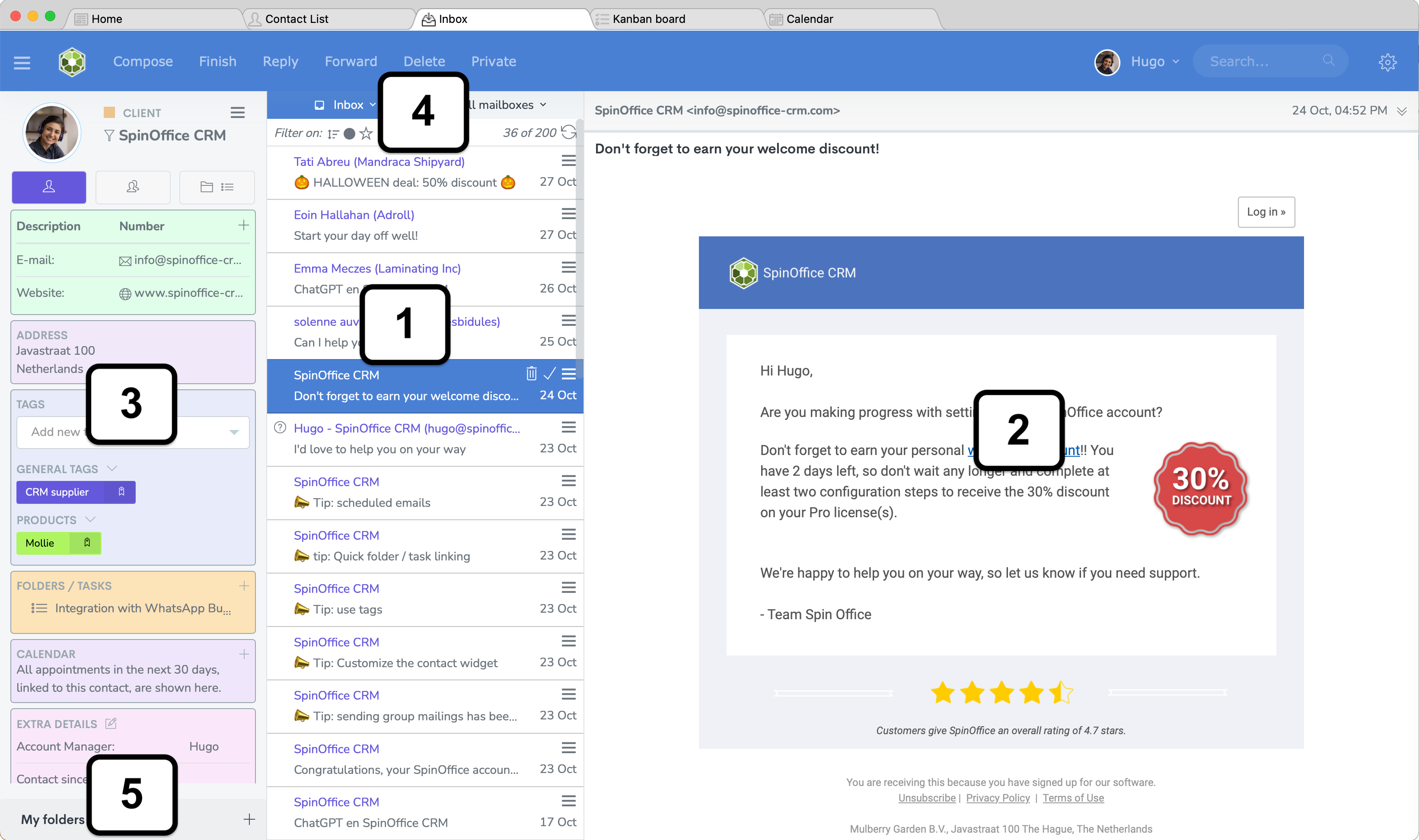
Tip: double-click the sender's name to open that contact's archive. Double-click the subject to open the email in a new tab.
Linking an email to a contact
If the sender's email address isn't in SpinOffice yet, you see a question mark. You have two options:
- New contact: add the sender as a new contact.
- Existing contact: right-click the email and choose Link to Contact.
You can link an email to several contacts.
Linking an email to a folder
Right-click the email and choose Link to Folder. You can also drag the email to a folder in the left column. You can only link to folders you have access to.
Sharing an email with a colleague
Want a colleague to see an email, without forwarding it? Right-click and choose Link to Colleague. The email then also appears in your colleague's Inbox. If you remove yourself, the email disappears from your Inbox.
Turning an email into a task
Right-click and choose Convert to Task. You can add a reminder, a priority and a folder. Read more: Creating and assigning tasks
Finish or delete?
Done with an email? Then choose Finish. The email disappears from your Inbox and is kept in the contact's archive, with a green check mark. You can also find it in the Finished folder.
Only choose Delete if you no longer need the email. The difference:
| Finish | Delete | |
|---|---|---|
| Linked only to you | Out of your Inbox, kept in the contact's archive | To the Trash, not kept in the archive |
| Shared with colleagues | Only gone from your Inbox | Gone for all colleagues |
The right-click menu
Right-click an email to quickly find most actions, such as linking, finishing, creating a task and sharing with a colleague.
Was this article helpful?
That’s Great!
Thank you for your feedback
Sorry! We couldn't be helpful
Thank you for your feedback
Feedback sent
We appreciate your effort and will try to fix the article